The Client Detail Page
The client page gathers everything about a contract and the contact behind it: data, contracts sent for signature, payments, commissions, notes, history, timeline and logs. You open it by clicking a client in the list — and you also land here by opening the page of an already converted lead: after the signature there is one page only, this one.
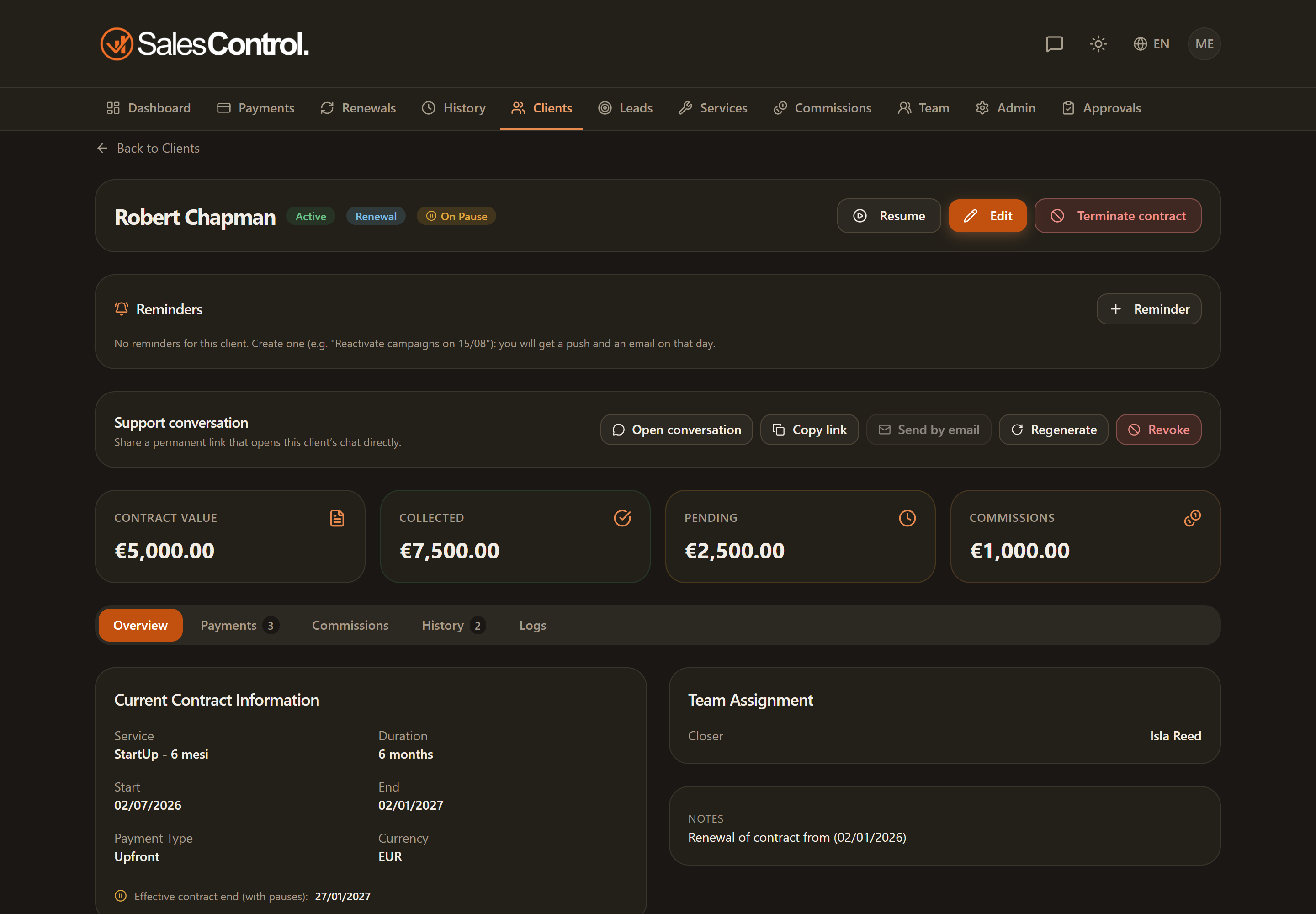
The header
At the top you find the client’s name and the badges (status, Pause). The Renewal badge is no longer here: it stays in the contract history, on the row of the current contract, where you read it together with what came before; renewals as numbers are read in the Renewals Panel on the Dashboard. With the can_edit_clients permission, these buttons also appear:
- Pause / Resume — to suspend or restart the contract. See Pausing a Contract.
- Edit — to update the client’s data. See Edit or Delete a Client.
If the client is linked to Stripe, the header shows a section with the Linked to Stripe badge, the billing day and the Re-anchor from Stripe and Unlink buttons (also gated by can_edit_clients).
The cards at the top
Below the header there are a few context cards:
- A card for the conversation: it opens the chat with the client. Managing the chat link is reserved to the admin.
- A card with the trial outcome, if the trial is over (passed or failed).
- Four summary cards: contract value, collected, pending and commissions.
In the Overview tab, under the contract data, there is also the Contracts card: the documents sent to this client for signature, with their status (sent, opened, signed, cancelled, expired; the Abandoned badge on the ones someone moved to Abandoned) and the button to send a new one — it is how you get a renewal signed. If the signer has opened a contract at least once, the N openings button appears on the dates line: it opens the opening history, with the device, location and reading time of each one. See In-house contracts.
The tabs
| Tab | What it contains |
|---|---|
| Overview | Contract data (with the client’s email and phone, if filled in), the Contracts card, pause history, parallel contracts, assigned team, referral and notes. |
| Payments | Filter, recalculate due dates, mark paid/unpaid, edit amount or due date, delete an installment. |
| Commissions | The commission breakdown by role (Setter, Closer, PM). |
| Notes | Every note about this contact, including the ones written while it was a lead. |
| History | The chain of contracts (renewals), archived payments (for the admin), the client’s appointments and recorded calls. |
| Timeline | The certified history of the relationship, exportable and fit to show the client. |
| Results | The numbers of the client’s GoHighLevel sub-account (leads by tag, appointments) with period, comparison, chart and CSV export. Only there with the sub-account connected, from the Professional plan. See The Results tab. |
| Logs | The client’s event history, visible with can_view_audit_logs. |
The Notes tab
It is the note register of the contact, not of the contract: when a lead becomes a client its notes are not copied, they stay the very same rows and are read from here. Each entry carries date and time, the name of whoever wrote it, any attachments and a label with its origin: Follow-up (from the follow-up dialog on the lead), Call (the notes of a recorded call), Manual note, Restart (the terms agreed on a planned restart), Converted to client, From webhook (notes and requests coming from GoHighLevel or another webhook) and Profile (the Notes field of the form).
The Add note button writes a note by hand. Every note carries Notify colleagues: you pick the people and a push notification and an email go out immediately, each in the recipient’s own language, with a link to this page. It is not a notification you configure in Settings and it does not land in the Timeline — it is a message between people; under the note you keep reading who was notified. You can notify admins and the colleagues on your own team, never yourself.
The History tab
Besides the chain of contracts and the archived payments, History holds the two things you need now and then but not every day: the client’s Appointments (past and future, read-only) and their Recorded calls, with video, transcript and notes. Appointments booked in SalesControl send the client confirmation, reschedule, cancellation and reminder emails: see Agenda and appointments.
The Timeline tab
The Timeline stays outside the notes, and that is deliberate: it is the history you can export and show the client, so it holds no internal notes, no reminders and no restarts. See The Client Timeline.
The Logs tab appears only if you have the can_view_audit_logs permission; Admins always see it. See Client Activity Log.
From the Payments tab you manage installments without leaving the page: collections, amount or due-date corrections and schedule recalculation. See Edit a Payment’s Amount and Due Date.