Edit or Delete a Client
You can update a client’s data at any time, or delete them. Some contract fields are “critical” and, if changed, regenerate the pending payments: that is why the app first shows you an impact summary.
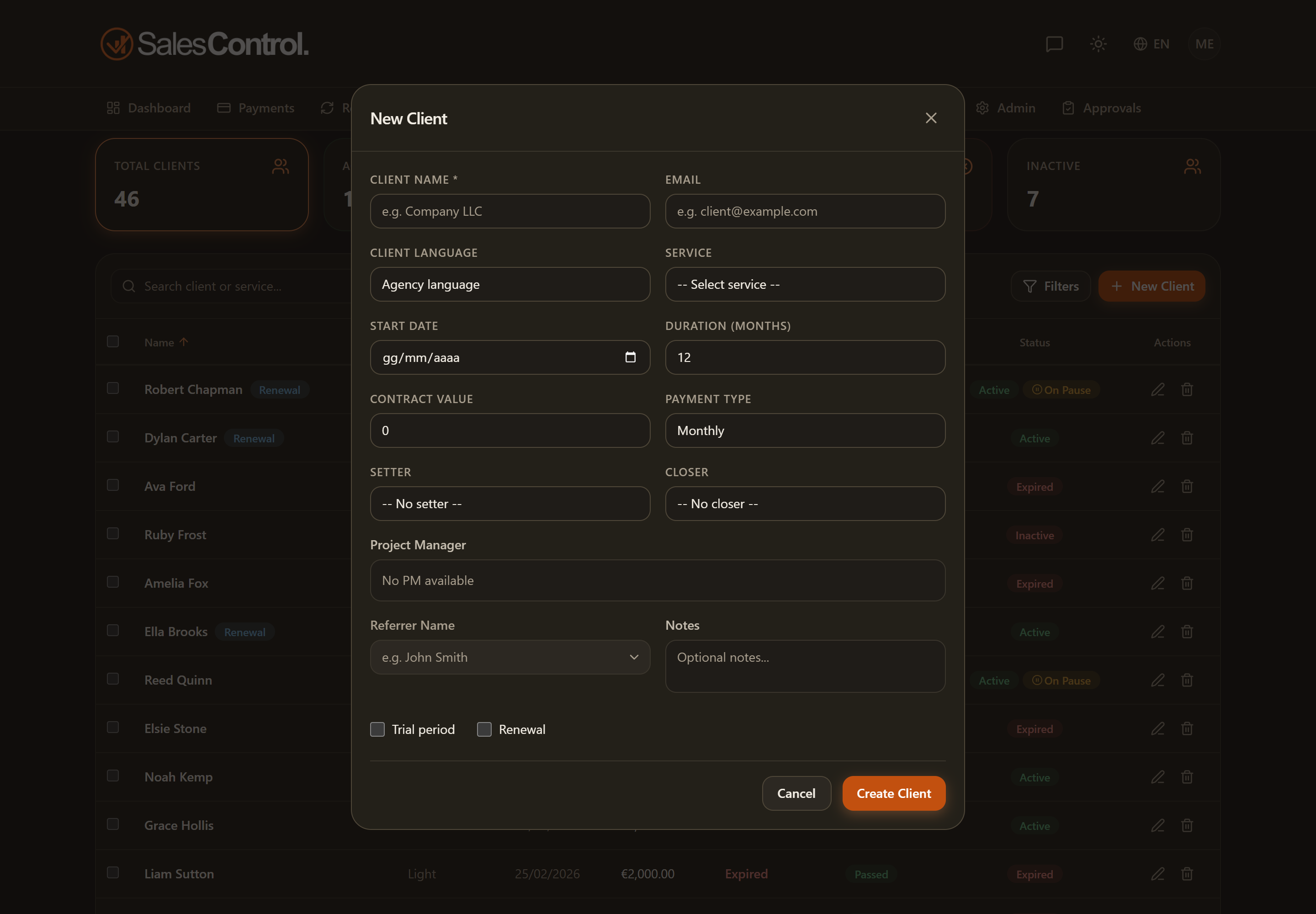
How to edit a client
Open the edit form from two places:
- From the row in the clients list, using the pencil icon.
- From the header of the client detail page, using the Edit button.
Editing requires the can_edit_clients permission. It is always on for Admins; for a team member the admin enables it in their card under Team.
The window is the same one used to create a client, so you find every profile field again. Four are worth a look:
- First name, Last name and Full name or company are three separate boxes. On a client who was already there, first and last name are often empty: you can fill them in safely, the full name is not rewritten (it only composes itself while nobody has touched it, and an existing record counts as already touched).
- Email and Phone — they are the details SalesControl uses to recognise the client when they book a call or come in through a webhook, so keep them up to date. The email, if filled in, must look like a valid address, otherwise saving does not go through. See how the client is recognised.
- Client language — a dropdown with the five languages; Agency language leaves it unset.
- Market — only if the agency works across several markets: Automatic · <market> lets the rule decide, picking one pins it by hand.
The critical contract fields
Four fields are considered critical because they affect the payment plan:
- Service
- Duration
- Value
- Payment type
These fields are locked without the can_edit_critical_fields permission. With the permission on they become editable.
The impact confirmation dialog
If you change one of the critical fields of an existing client, the save does not run right away: an impact confirmation dialog appears, summarizing, for that client:
- Which fields changed, with old → new value.
- How many already-collected payments are preserved.
- How many pending payments are deleted and regenerated.
- How many bonuses it is advisable to re-check.
Only after pressing Confirm and save is the change applied.
Changing a critical field does not require deleting and recreating the client: pending payments are regenerated automatically, while already-collected ones stay intact. The dialog exists precisely to show you the impact before you proceed.
Deleting a client
Deletion requires the can_delete_clients permission. It is a permanent operation: the payments are archived and the client is removed from the list.
Deletion is not reversible. If you only need to “close” a client without erasing them, consider letting the contract expire or managing its status, so you keep the history.