The Clients List
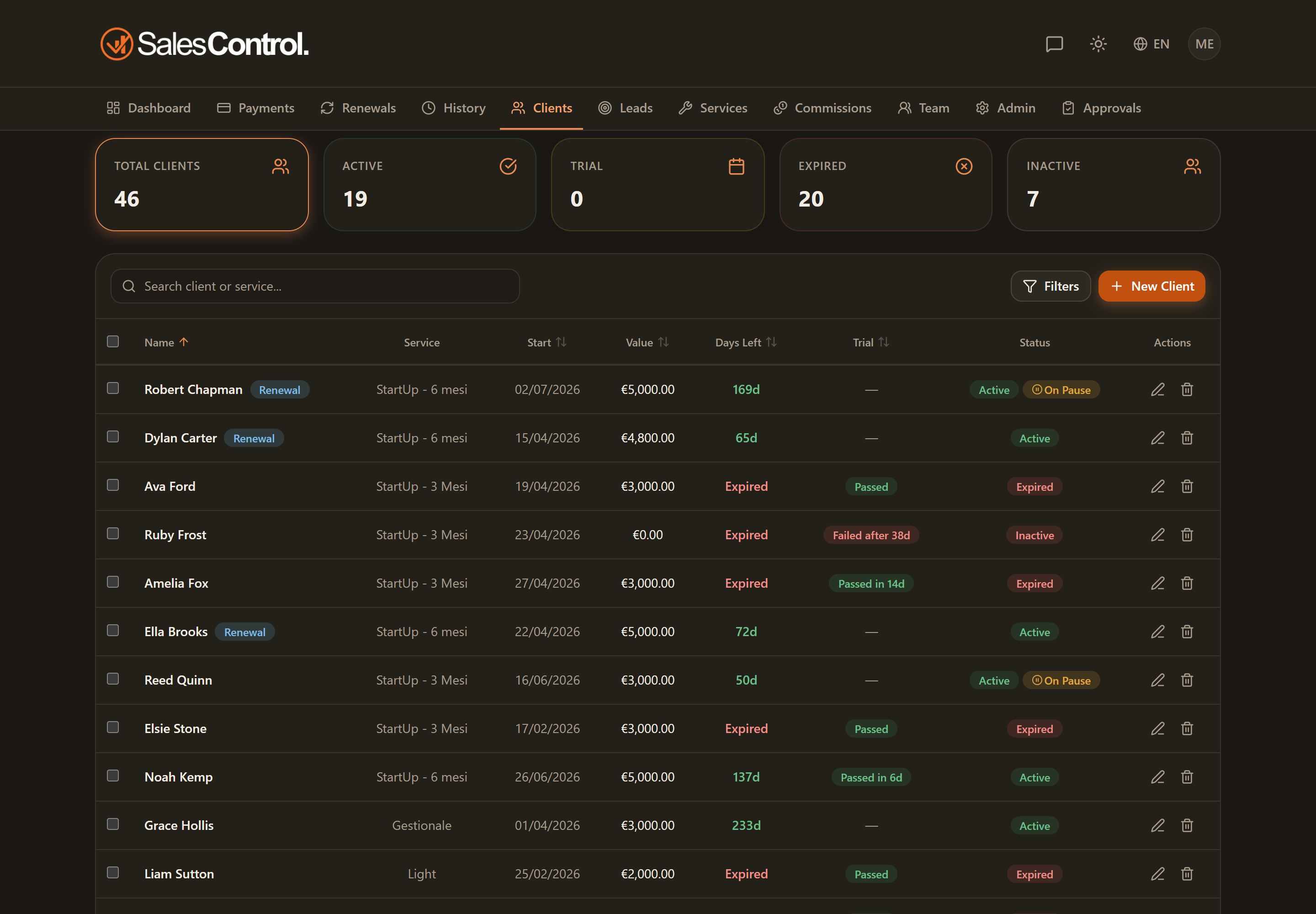
The Clients page is the register of all your agency’s contracts. From here you filter, sort and search for clients, read their status at a glance and open each one’s detail page with a click.
Who sees which clients
What appears in the list depends on your role:
- Admins see all of the agency’s clients.
- Team members only see the clients they are involved in as Setter, Closer or PM.
A client with more than one contract
If a client signs a contract for another service while the first one is still running, they remain one client: the list shows a single row with the services listed (for example “StartUp - 3 Mesi + Website”), the combined value and the days left until the nearest expiry. The client is Active if at least one contract is active. The summary cards and the plan’s client limit count people, not contracts. In the client record, “Other active contracts” lists the other contracts, each with its own page for instalments and history. Deleting the client deletes all of their contracts.
The summary cards (quick filters)
At the top of the page there are five cards with counts. They are clickable and act as a quick filter on status:
- Total — clears the filter and shows everyone.
- Active, In trial, Expired, Inactive — show only the clients in that status.
Clicking a card selects it (it gets highlighted); clicking it again returns to “Total”.
Client statuses
Every client has a status badge. There are four of them:
| Badge | Meaning |
|---|---|
| Active | Contract in progress and not yet expired. |
| In trial | Client in the trial period, not yet confirmed or failed. |
| Expired | An “Active” contract whose effective expiry has already passed. |
| Inactive | Client no longer active (closed or deactivated). |
The Expired status is computed on the fly (it is not a stored value): it compares the contract’s effective expiry with today. The effective expiry takes into account extension-type pauses, which push the contract’s end forward. So a client with an active pause that moves the end into the future does not show as expired.
Search and filters panel
Above the table there is a search that filters by name, service, email or phone. Next to it, the Filters button opens a panel with:
- Status — Active, In trial, Expired or Inactive.
- Service — limit to a specific service.
- Team member — available to admins only, to see a given member’s clients.
- Market — if the agency works across several markets, the market legend appears at the bottom of the panel: one chip per market, plus Other sources for clients whose market cannot be established. Click a chip to keep only that market, several to add them up, All to clear.
A client’s market is worked out on its own from their language (when exactly one market speaks it), otherwise from the closer, the setter or the PM if they have a single market; you can pin it by hand from the Market select in the client form or with the bulk action. There is no market dot in the table: there is the filter. Legend and filter need two conditions: two or more markets declared (an Enterprise plan feature) and a viewer who is not tied to a single market — an admin always sees them, a member assigned to one market does not.
Acting on several clients at once
Admins and Sales managers get selection checkboxes at the start of each row: ticking several clients brings up the bulk action bar at the bottom, where you can reassign setter, closer and PM, set the language, change status, export to CSV (the file includes email and phone too) and — for admins — delete.
With markets enabled the bar also has a Market action, which opens the Move to market window: pick the market to assign to the selection, or Automatic (from language and members) to put those clients back under the automatic rule. It is the quickest way to correct several clients at once; on a single one you do it from the Market select in their form.
The sortable columns
You can sort the table by clicking each column header:
| Column | What it shows |
|---|---|
| Name | Link to the client’s detail page. The Renewal badge is no longer here: renewals are read in the Renewals Panel on the Dashboard. |
| Service | The contract’s service. |
| Start date | The contract’s signing/start date. |
| Value | The contract value. |
| Days remaining | Days to the effective expiry, color-coded; if ≤0 it shows “Expired”. |
| Trial | For clients in trial, the days since campaign activation; once the outcome is decided, the result badge. |
| Status | The status badge, with a Pause active indication if present. |
| Actions | The actions available based on your permissions. |
Opening a client
Clicking a row (or the name) opens the client detail page with all the details, payments, commissions and history.
The list has no pagination: all visible clients are in a single table. Use search, cards and filters to narrow down quickly, and sorting to bring what you need to the top.