Managing the Trial Period
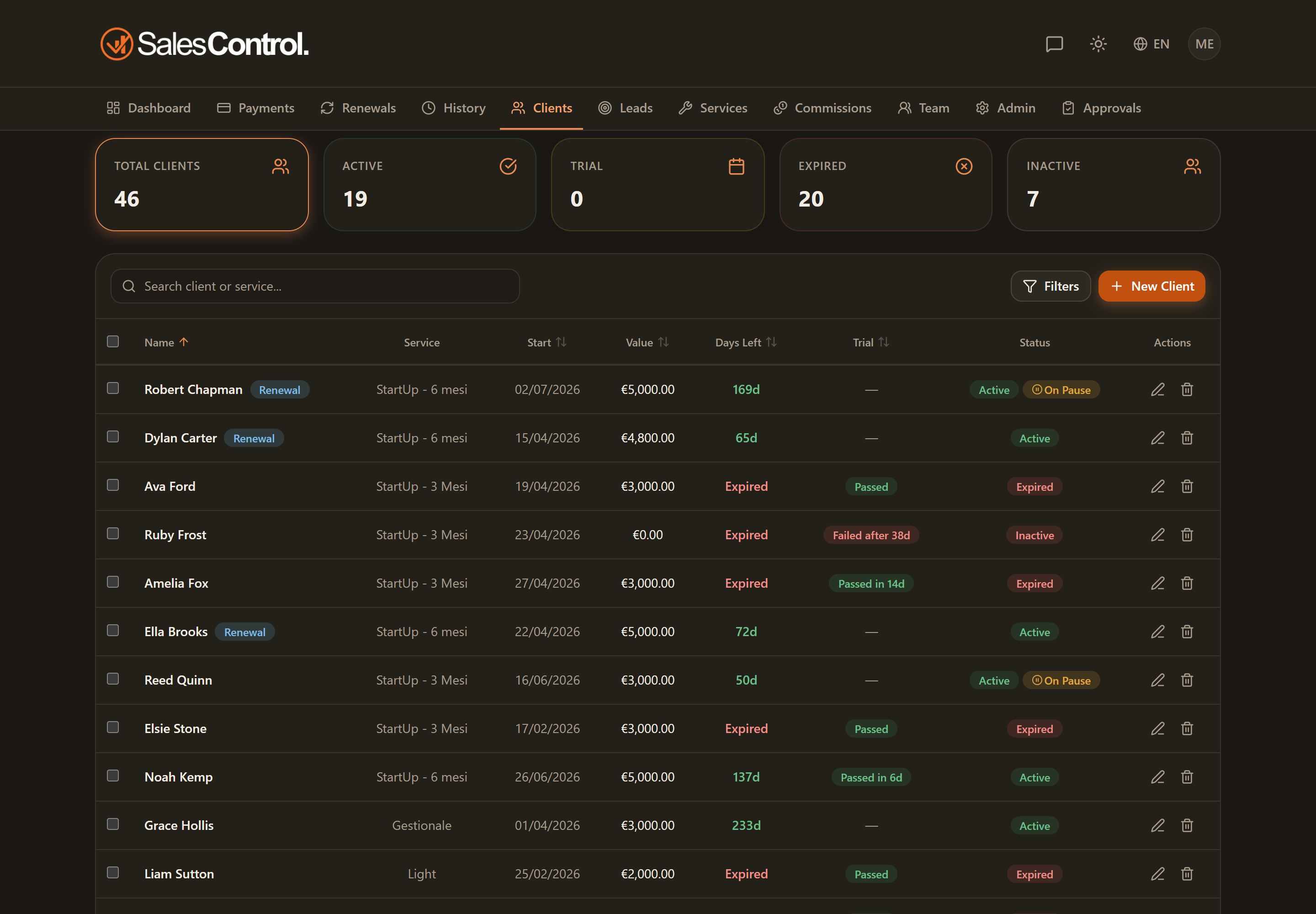
When a client starts on trial, you manage the trial lifecycle from the Clients list: mark when the campaigns go live, fix the date and close the trial as passed or failed.
This feature requires a paid plan (Starter and above). See Subscription Plans.
Who can manage trials
All trial actions require the can_manage_trials permission. It is always on for Admins; for a team member the admin enables it in their card under Team.
Activating campaigns
In the clients list, the Trial column shows the rocket button 🚀 Activate campaigns. One click sets today’s date as the campaign start: the Active for X days badge appears.
The badge is clickable: from there you can fix the date (at most today) or remove it.
On its own, campaign activation is an informational counter: it records how many days the campaigns have been running, and the trial closes only when you complete it or fail it manually. It becomes a real start date once you set a window together with the automatic goal tracking described below.
Counting goals automatically
When a trial is judged on a number — appointments booked, deals closed, leads delivered — there is no need to keep count by hand. Connect the trial events webhook and your CRM tells SalesControl about every event, so the Trial column shows a progress badge such as 7/10 · 12d: events collected out of the target, and days left.
The target and the window are set on the service (as defaults) and, where needed, overridden on a single client in the create or edit form. Once the target is reached the trial is automatically closed as passed, with the same effects as the manual button; when the window expires you either get a warning or the trial is closed as failed, depending on how you configured the agency.
The full walkthrough — connection, accepted fields, reconciling events with no client and notifications — is in Counting Trial Goals (events webhook).
Completing the trial (passed)
The ✓ End trial button closes the trial as passed: the contract becomes active to all effects and any retroactive bonuses tied to the signing month kick in. The installment due dates do not change: they stay as calculated at signing. If the trial ran longer than planned and an installment is already overdue, fix it from the client detail page with Edit due date.
During the trial the service payment links and instructions stay empty in every message: you do not ask someone still trying the service to pay. They arrive with the Trial passed notification, which carries the links matching their contract payment type (single sum or instalments) and the instructions block for that same type. If the notification is off, or those fields are not filled in on the service, the client gets nothing: see Service Payment Links and Instructions and Push and Email Notifications.
Failed trial
The ✗ Trial failed button closes the contract: value zeroed, pending installments removed and an entry recorded in the history.
The outcome history
After the trial is closed, the Trial column shows the result badge:
- Passed in Xd (green)
- Failed after Xd (red)
The days are counted from campaign activation or, if missing, from the contract’s start date. The client detail page also shows a box with start, outcome and days.
The first installments of clients in trial live in the In trial sub-tab of Payments, where you can also close the trial. See Payments In Trial. To understand how bonus rules handle trials, see Advanced Bonus Conditions.