Push and Email Notifications
Notifications keep the team up to date on what happens in the agency. For each event you decide independently whether to send a push notification, an email, both or neither, and who should receive them.
This feature requires a paid plan (Starter and above). See Subscription Plans.
Where to find it
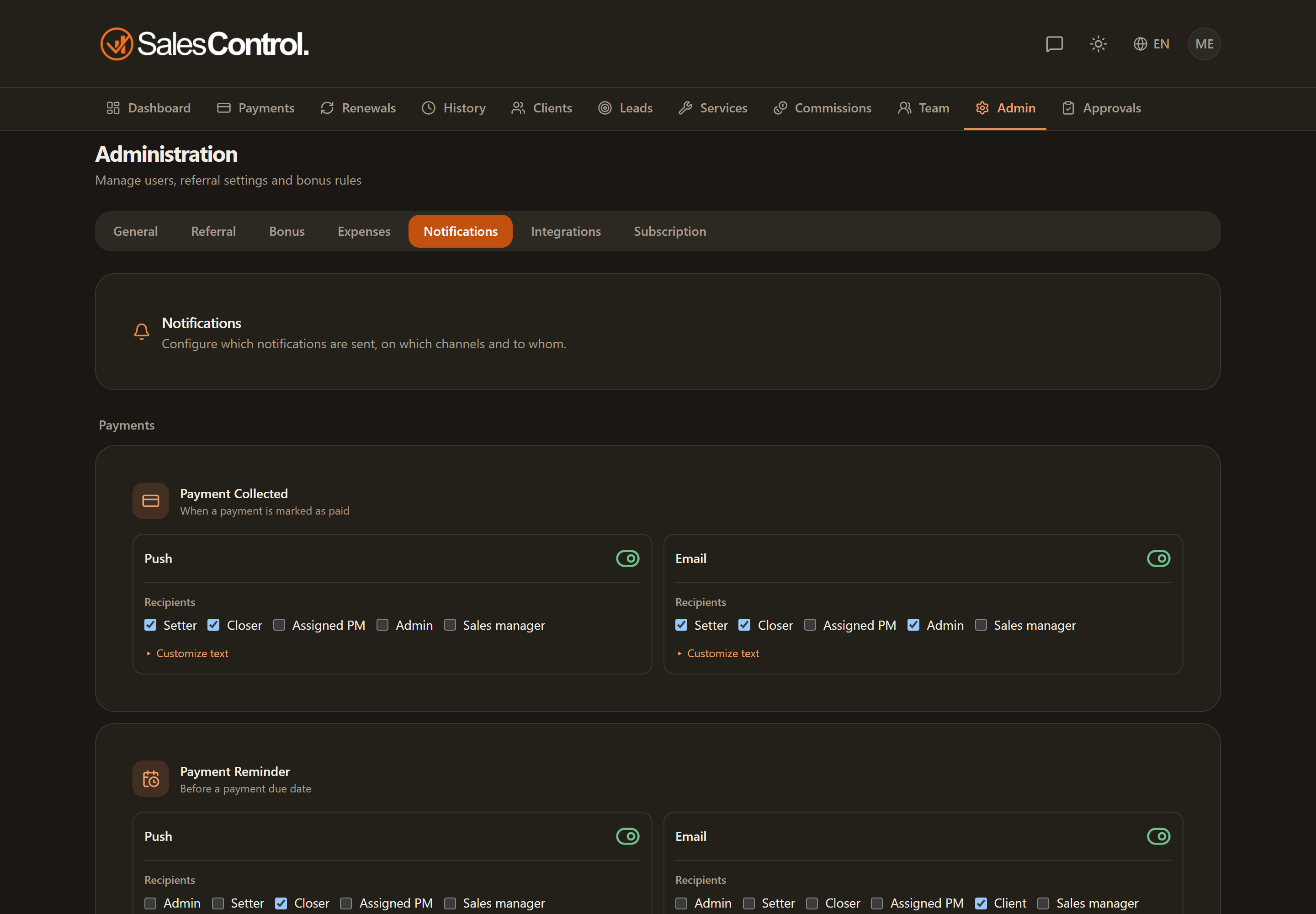
Open Settings from the sidebar and select the Notifications tab. The page is reserved for Admins.
The tab is split into groups that open and close: General at the top (open), then one group per area, in sidebar order. Each area header says how many notifications are on, for example “3 of 9 enabled”; when collapsed, every notification shows Push and Email pills for the channels that are on. Your browser remembers which groups you had open.
The available notifications
Notifications are grouped by area, so you can find the one you need quickly:
| Area | Notifications |
|---|---|
| Payments | Payment Collected · Payment Reminder · Payment failed |
| Contracts & clients | New Client · Client to complete · Contract signed · Contract Starting · Contract Expiry · Contract Paused · Pause Ended · Client reminder · Trial Passed · Trial Failed · Trial Window Expired |
| Leads & agenda | New appointment · Call notes ready · Notetaker waiting to be let in · New booking · Booking cancelled · New Lead · Lead handoff · Email received · Lead Follow-up |
| Team & earnings | Commission Paid · Bonus Achieved · Weekly Bonus Recap |
| Chat & support | Client chat message |
| Ecosystem | Campaigns live · Ad budget running low · Ad budget exhausted · Campaigns paused manually · Campaigns resumed manually · Campaign deletion scheduled · Campaign deletion cancelled · Campaigns deleted · Outstanding ad balance · Ad balance resolved |
Some are events (they fire when something happens), others are reminders tied to a date: those also have an Advance-notice days field, where 0 means “on the day”. The days are shared between push and email. The Lead Follow-up is the exception: it goes out at a fixed time, early in the morning, and has no days to set.
The notifications added recently
Almost every new notification ships off, so an update never changes by itself what the team receives. The exceptions are few and deliberate: the facts that genuinely cost something if you find out late.
| Notification | When it fires | How it ships |
|---|---|---|
| Contract signed | The recipient signed the contract you sent. | Push on for setter and closer; email off. No client among the recipients: the signed contract already reaches them as an attachment. |
| Client to complete | A signature arrived without a service, an existing client signed again, or the signature was refused because the plan is full. | Push on for closer and admin; email off. Three causes, one type: whoever receives it has to do the same thing, open that client. |
| Notetaker waiting to be let in | The recording bot is in the waiting room and nobody has let it in. | Push on for closer and admin; email off — a warning worth twenty minutes is read on a phone. |
| New booking and Booking cancelled | A prospect books or cancels from the public booking link. | Push on: the new one for closer and admin, the cancellation for the closer. Email off. |
| Lead handoff | A closer, sales manager or admin hands an active lead to a setter for follow-ups — including from the bulk Assign action in the Leads list. | On for both channels, to the new setter and the admins: a silent handoff is the very problem the feature solves. |
| Call notes ready | Transcript and notes of a recorded call are available. | Push on for the closer; email off. |
| Email received | A contact replied to an email sent from SalesControl (see Communications). | Push on for the conversation’s closer; sales managers and admins can be turned on. Push only: the email is already there, it is the one forwarded to the closer’s inbox. It only alerts people who can see the conversation: without a closer, only admins. |
| Outstanding ad balance / resolved | They come from GodAds when the client has not settled the ad traffic, and when the episode closes. | All channels off. See Ecosystem. |
The bulk Assign action in the Leads list sends one notification per lead that actually changed owner: leads already assigned to that person produce nothing. The push arrives per lead; the email, if the channel is on, is grouped (see below).
When a lead arrives through the webhook, which notification fires depends on what it carries. If the discovery-call date is there you get New Appointment — “New appointment — Mario Rossi on 31/12 at 15:30” — otherwise New Lead, with the name and language. The two never arrive together.
This holds for later deliveries too: if a call is booked or moved by a second webhook call, the appointment is announced then. A repeat delivery that changes nothing sends nothing.
New Appointment ships on for push to setter, closer and admin: whoever has to show up for a call cannot be left to discover it by opening the CRM. Turn it off on both channels and the event announces itself as New Lead again, rather than disappearing.
Two independent channels: Push and Email
Every notification has two separate blocks, one for the Push channel and one for the Email channel. Each has its own switch and its own list of recipients, picked among those that make sense for that notification: setter, closer, assigned PM, team member, admin, sales manager and, for some emails, the client. So you can send “Payment collected” via push to the salespeople but via email only to the admin.
The two channels are truly independent: enabling one does not enable the other. Defaults differ from notification to notification — lead follow-up reminders, for instance, start switched on for both channels, while the more recently added notifications start off.
Emails group themselves
Tick ten commissions one after the other and one single email arrives with the list and the total, not ten. There is nothing to configure: it happens on its own, and it changes nothing about recipients, texts or the push channel, which stays immediate.
- How long it waits — the group goes out once it has been quiet for a minute (no new fact has joined) or in any case within five minutes of the first one: the quiet lets the one-at-a-time ticks pile up, the cap makes sure a continuous stream still goes out.
- One email per recipient — each person gets their own copy, in their own language. Where three admins used to share one “To:” field, each now gets their own email.
- Never two types in the same email — a collection and a commission stay two messages.
- A group of one is identical to before — if only one thing happens in that minute, the email you get is the usual one, custom text included. The summary with the total only appears from two facts up.
These group: Commission Paid, Payment Collected, New Client, New booking, Call notes ready, New Lead, New appointment, Lead handoff and Bonus Achieved — that is, the types where two can be born for the same person in the same minute.
These deliberately do not group: Booking cancelled (it frees a slot: it must be read at once), Contract signed, Client to complete and Notetaker waiting to be let in (urgent, one per fact), client reminders and the pause, trial and ecosystem alerts (already one per client), and the Client chat message, which is a real-time tap on the shoulder.
If the mail provider is momentarily unreachable the group retries after 2 minutes, 10, 30 and 2 hours. A failed attempt does not restart the wait: the clock always runs from the first fact in the group.
Customizing the text
Under each of the two channels, Push and Email, the Customize text button opens an editor with the subject and body of the message. The text is written per recipient: the editor shows one tab for every role you selected on that channel, so the same event can be told one way to the closer and another way to the admin. It’s optional: leave it alone and the default, already translated texts are used. Inside the editor you can insert the variables available for that notification (the client name or the amount, for example) by clicking them in the list.
For the client: customer_name is the first name (“Hi Mario”), customer_full_name the full name (“Mario Rossi”) and customer_last_name the surname. Leads and bookings keep lead_name/prospect_name (full name) with the parts lead_first_name/lead_last_name and prospect_first_name/prospect_last_name. If the contact has no surname, customer_last_name stays empty: it never repeats the first name. The default texts use the full name; if you had written customer_name meaning the full name, your text was updated automatically to customer_full_name.
The Lead Follow-up has no button: it is a list put together by the system (the leads to contact that day), not a text to rewrite.
Customizing the texts is reserved for the Enterprise plan: on the other plans the button stays in place with a padlock and, when clicked, explains what the Enterprise plan unlocks. Everything else in the Notifications tab — channels, recipients and advance-notice days — is available from Starter upwards.
This tab saves itself: there is no Save button. An indicator in the top right shows “Saving…” and then “Saved”.
The Client chat channel and the client's language
The client-facing notifications — Payment Reminder, Contract Expiry, Payment failed, Contract Paused, Pause Ended, Trial Passed and the ten Ecosystem types — can also be delivered to the client’s support group, signed with the agency name, with a push notification on the portal. This channel, Client chat, does not live in this tab: you turn it on type by type in the Client support chat tab of Settings, under Notifications in the group, where you also choose whether to reuse the email text or write a dedicated chat text. Here, the card of those types carries a line pointing there. The Chat tab only exists on the Enterprise plan, which includes the client chat.
On “Trial Passed” you can insert one variable that comes from the client’s service: payment_instructions (the IBAN, amount, reference and payment links you wrote on the service, in the block for that client’s contract payment type: someone paying in a single sum and someone paying in instalments do not get the same text). The same variable works in the Payment Reminder and the Contract Expiry. See Service Payment Links and Instructions.
Every client-facing communication — emails, chat messages and the chat welcome message — goes out in the language set on the client’s page (falling back to the agency’s default language). The default texts already exist in 5 languages; with the multilanguage platform enabled, the texts you customize — the per-recipient editor, the dedicated chat text and the service welcome message — are translated automatically within about ten minutes of saving, and each client receives the version in their own language.
The address clients reply to
Emails that go to the client are sent from a SalesControl address: if you say nothing, a client pressing “Reply” writes to us, not to you. In the General group of the tab, under Sender, the Email for client replies field sets the agency address those replies land on.
Leave it empty and a fallback applies: the email of whoever acted (the closer who sent the contract, say) and, failing that, the first admin. It applies to every client-facing email: contracts, bookings, appointments, reminders and dunning. The field saves itself, like the rest of the tab.
With a plan that includes Communications, right below there are two switches, for admins only:
- Track client replies in Communications (on by default) — emails to clients carry the closer’s personal reply address, like name.agency@notifications.salescontrol.app. The client replies as usual: the reply still lands in the closer’s inbox and is also saved in Communications. Off, replies go back to the address above.
- Track email opens (on by default) — every email to a client carries an invisible image that tells whether and where it was opened. It can be on only while the first switch is on. It processes the recipient’s data: the agency declares it in its own privacy notice. The switch only covers emails: openings of a contract’s signing link are always recorded, and you read them in the opening history.
The weekly bonus recap
The Weekly Bonus Recap goes out on Sunday at 18:00, in the time zone of whoever receives it: someone working from Sydney gets it on their Sunday evening, not ours. It has no advance-notice days to set. It is one of the two notifications with a fixed time: the other is the Lead Follow-up, which goes out early every morning in the time zone of the lead’s market.
Clients on automatic Stripe billing
Asking someone whose card is saved on Stripe to “remember to pay” is pointless: the charge goes through by itself. The Payment Reminder and Contract Expiry cards carry the Clients with Stripe auto-charge block with the Send to them too switch, on by default. Here it shows up when the client is among the email recipients; in the Client support chat tab it shows up when the chat channel is on, and it is the same switch. Turn it off and those clients stop getting the reminder by email and in chat, while the team keeps receiving it.
Leave it on and the text editors show a Client (Stripe auto-charge) tab next to Client: leave it empty and the “Client” text applies. In the texts you can use card_update_link, the link the client uses to update the card themselves. See Reminders for Clients on Automatic Billing.
The email with the chat link
The General group holds the switch for the “Your support chat” email. It goes to clients activated without a contract signed in SalesControl: created by hand, moved to Active from “To complete”, or imported through your CRM webhook. Inside is the link to their chat, with an invitation to open it on their phone and add it to the Home screen.
Whoever signs in SalesControl does not get it: they already receive the link on the page after signing and in the template’s “signed contract” email, and a third email would say the same thing. See The Post-Signature Page and Email.
The switch only appears on a plan that includes the chat, that is Enterprise; on the other plans a line in its place explains why. The limit is enforced on the server too: outside that plan the link never goes out, not even when your CRM webhook asks for it.
Notifications with special recipients
- Client reminder — recipients are chosen by whoever creates each reminder on the client page; here you only govern channels and text. See Client Reminders.
- Lead Follow-up and New Lead — they rely on the setter and closer assigned to the lead. See Follow-up Reminders.
- Lead handoff — “setter” here means the new owner of the lead, not the previous one.
- Client chat message — the recipients are Chat participants and Admin (whoever is both counts as a participant) and, like the other types, it takes a custom text per role. The email to the team goes out in the branded frame, with the button to open the conversation. The other direction, from the team to the client, does not come from here.
- Call notes ready and Notetaker waiting to be let in — they rely on the closer of the call. See Call recording.
- The ten Ecosystem types — besides their own switch they need the ecosystem’s general switch: with it off the event produces nothing at all, not even the Timeline entry. See Ecosystem.
- Payment failed — fires when a Stripe collection fails; by default it alerts the Closer and the Admin, and it can also reach the client by email or in chat.
- Trial Passed, Trial Failed and Trial Window Expired — they follow the trial lifecycle, whether you close it yourself or the automatic goal count closes it for you. They can also reach the client by email and, for Trial Passed only, in chat. See Counting Trial Goals.
Push notifications only reach those who have enabled them on their own device. Each member turns them on from their own Push Notifications.