General Agency Settings
The General tab of the Admin Panel holds your agency’s basic settings. The most important one is the base currency, that is, the currency in which the app displays and calculates its reference amounts.
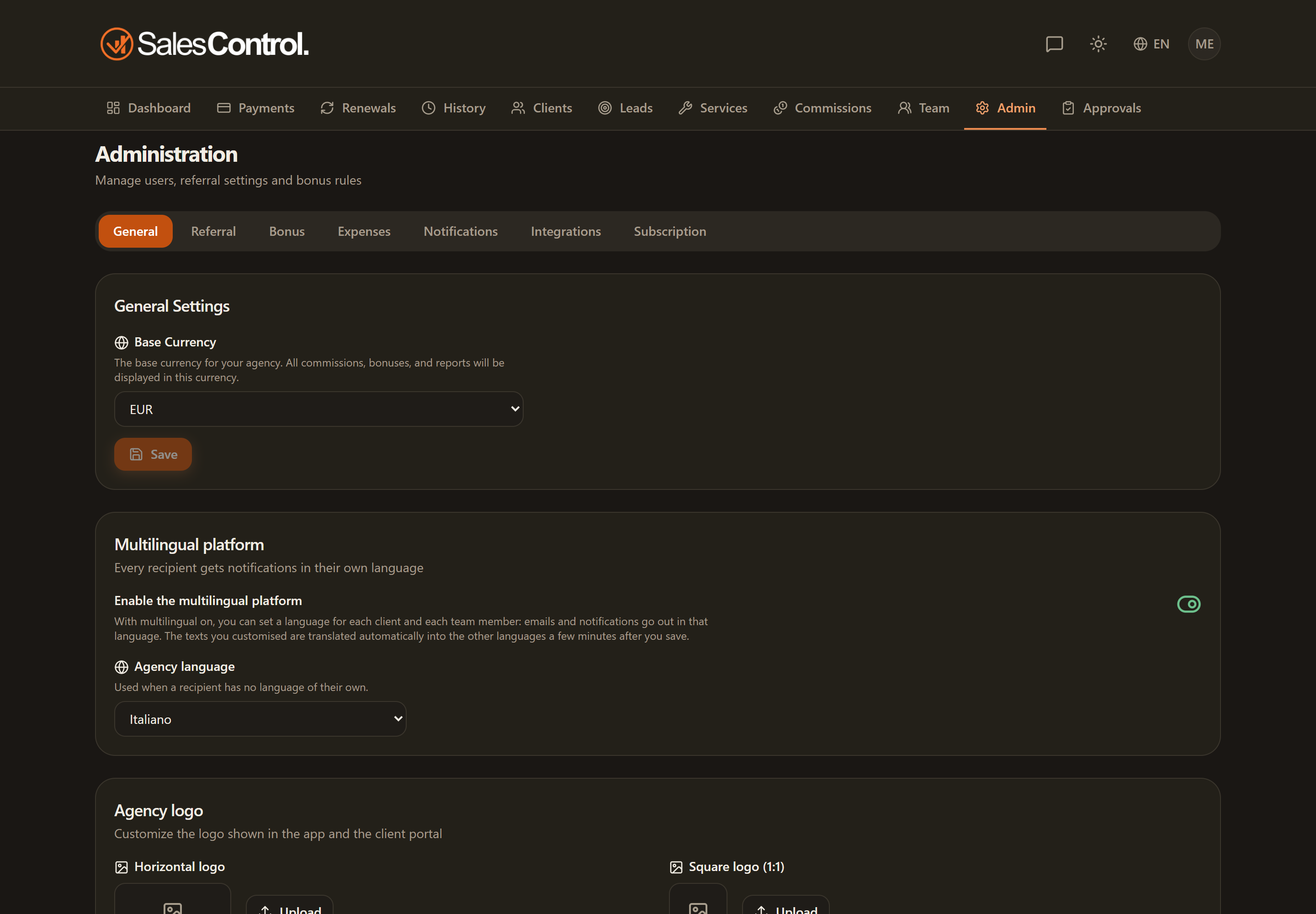
Where to find it
Open Settings from the sidebar and select the General tab. The page is reserved for Admins and Super Admins.
The groups in the tab
The tab is split into groups that open and close, so you do not have to scroll past everything to reach one setting. Your browser remembers which ones you left open.
- Agency (open) — name, base currency and the logos.
- Contracts — the agency signature stamped on the contracts you send.
- Languages — the default language and the multilanguage platform.
- Markets & booking — markets, the agency booking page and client emails for appointments (below).
The agency base currency
In the General tab you choose the base currency among EUR, USD, GBP, AUD and CAD. It is the currency in which dashboard totals, collections and commissions are expressed when services use different currencies.
Changing the base currency does not reconvert amounts already recorded. It only updates the reference currency for new calculations and for displays: historical contracts and collections keep their original values.
Per-service currency
From the Pro plans up you can assign a different currency to each service. In that case the base currency serves as a common reference: at collection time the exchange rate is locked on the installment. For details see the Multi-Currency article.
Client emails for appointments
In the Markets & booking group, the Client emails for appointments card sends whoever has the appointment a confirmation when it is booked, a notice when it is moved or cancelled, and one or more reminders before the time. The switch ships on.
It applies to appointments booked from the Agenda and from the booking link. Appointments imported from GoHighLevel or Google Calendar get no email at all: the system they come from already sends its own invite and reminders, and a second set would only confuse the client.
The reminder lead times
Under Reminders you pick how many hours before to send a notice: each lead time is one email. Out of the box there is just one, 24 hours before. Add others with the quick buttons (48, 24, 3, 1 hour before) or by typing any number of hours in the Other hours field; the × next to a lead time removes it. Remove them all and only the confirmation is left, and the card says so.
- A reminder that has been due for more than two hours no longer goes out: otherwise, the moment you add a new lead time, every appointment in flight would receive all the backdated notices at once.
- An appointment booked less than an hour before a reminder’s moment skips that reminder: someone who has just booked does not need reminding.
- If the appointment is moved, the reminders start over against the new time.
Email texts
Under Email texts each of the four emails — confirmation, rescheduled, cancellation and reminder — has its own Customize text, the same editor as the Notifications tab: it starts from the default text in the agency’s language, accepts variables in double braces and saves itself; Reset to default goes back to the stock text. The same text applies to Agenda appointments and to bookings from the link. The {{reschedule_url}} and {{cancel_url}} variables are the links the client uses to move or cancel the appointment on their own, {{booking_url}} the one to book again after a cancellation; the default texts already contain them. A line whose link is missing is left out of the email: for example the “cancel” line when the calendar has the The client can cancel the appointment switch off (see Booking link). As in Notifications, customizing texts is reserved to the Enterprise plan.
From the Agenda, an admin gets here through the Agenda settings link next to the title.
The card saves itself on every change, with no Save button. Emails go out in the client’s language.
These emails are sent from a SalesControl address. For a client pressing “Reply” to write to you, set Email for client replies under Settings › Notifications › General.
User management and sending invites are not here: they live on the Members page. See User Management and Approvals.