Create a New Client
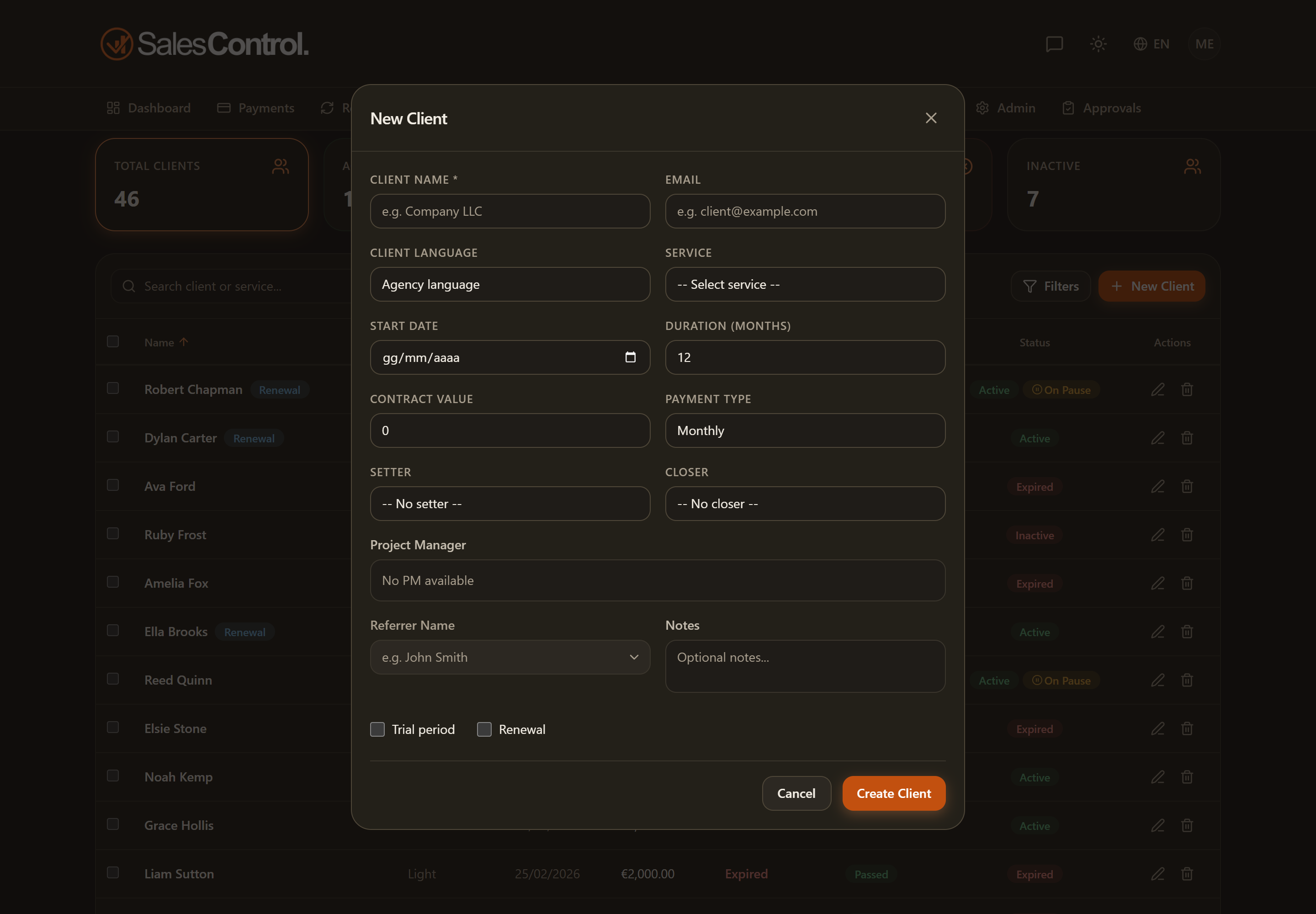
Creating a client means recording a new contract: you choose the service, set value and duration, assign who worked on it and, on confirmation, SalesControl automatically generates the payment plan.
A client is not born here only. If you use in-house contracts, when the signer signs the contract the client is created on its own, with service, value, duration, start date and payment schedule already filled in from what the document said — and the lead, if the contract started from a lead, moves to Won.
Who can create a client
The New client button at the top of the Clients page requires the can_create_clients permission. It is always on for Admins; for a team member the admin enables it in their card under Team. Without this permission the button does not appear.
The form fields
Fill in the fields of the creation form:
| Field | Description |
|---|---|
| First name | The given name on its own. Optional. |
| Last name | The family name on its own. Optional. |
| Full name or company * | The only required one, and the name that shows up everywhere: lists, notifications, logs. It composes itself from “First Last” as you type, until you touch it; once you write it yourself it stays as you put it — which is what company names and double-barrelled names need. |
| Optional; useful for reminders and the client chat. If you fill it in it must look like a valid address, otherwise saving does not go through and you see “Invalid email: check the address (e.g. name@domain.com).” | |
| Phone | Optional. Together with the email it is the detail SalesControl uses to recognise the client (see below). |
| Client language | A dropdown with the five interface languages; Agency language leaves it unset. It decides the language of the emails and messages the client receives. |
| Market | Only shown if the agency works across several markets. The first entry, Automatic · <market>, tells you which market the automatic rule would give today with the data in front of you; picking one pins it by hand. |
| Service | Selecting it auto-fills duration, value and currency from the catalog. |
| Start date | The contract’s signing/start date. |
| Duration (months) | The contract duration in months. |
| Value | The contract value. The field is locked without can_edit_price. |
| Payment type | Monthly (one installment per month) or Upfront (single payment). |
| Setter | Who acquired the client. |
| Closer | Who closed the contract. |
| PM | You can assign more than one, as chips. See Assigning Multiple Project Managers. |
| Referred by (Referral) | Links the client to another client who referred them. |
| Notes | Free-form notes about the client. |
| Trial period | Checkbox: marks the contract as in trial. |
| Renewal | Checkbox: indicates this is a renewal. |
Clients created before this change only have the full name: first and last stay empty until you write them. Where they are needed separately (in the variables of notification texts, for instance) they are inferred by splitting the full name at the first space — which works fine for “Mario Rossi” and much less for “Med Wave Ltd”. If you need the data to be accurate, fill in the two boxes.
The Value field is used to set a custom price different from the catalog. If you don’t have the can_edit_price permission, the field stays locked to the service value: you can still create the client, but not change the amount.
Email and phone: how SalesControl recognises the client
A person is either a lead or a client, never both. When a client books a call from the booking link or comes in through a webhook, SalesControl recognises them by email or phone: the call or the note lands on their page and no duplicate lead is created. That is why you should always fill them in.
What happens on confirmation
When you confirm, SalesControl creates the client and automatically generates the payment plan based on the chosen payment type: a series of monthly installments for Monthly, or a single entry for Upfront. See Automatic Payment Generation.
If you ticked Trial period, the client starts in the “In trial” status and its first installment goes into the In trial sub-tab of Payments. See Managing the Trial Period.
If the client was already a lead
If you create a client by hand with the same email or phone as an Open lead, that lead is linked to the client automatically and moves to Won, as in a conversion: you see the confirmation “Lead linked to the client”. If more than one lead has the same details, none is linked and you see the warning “There are 2 leads with the same details: convert them from the lead page”: pick the one to convert from the lead’s page.