Settings Overview
Settings gather all your personal preferences: name, language, password, device notifications and managing your data. They are available to every user and apply only to your own account.
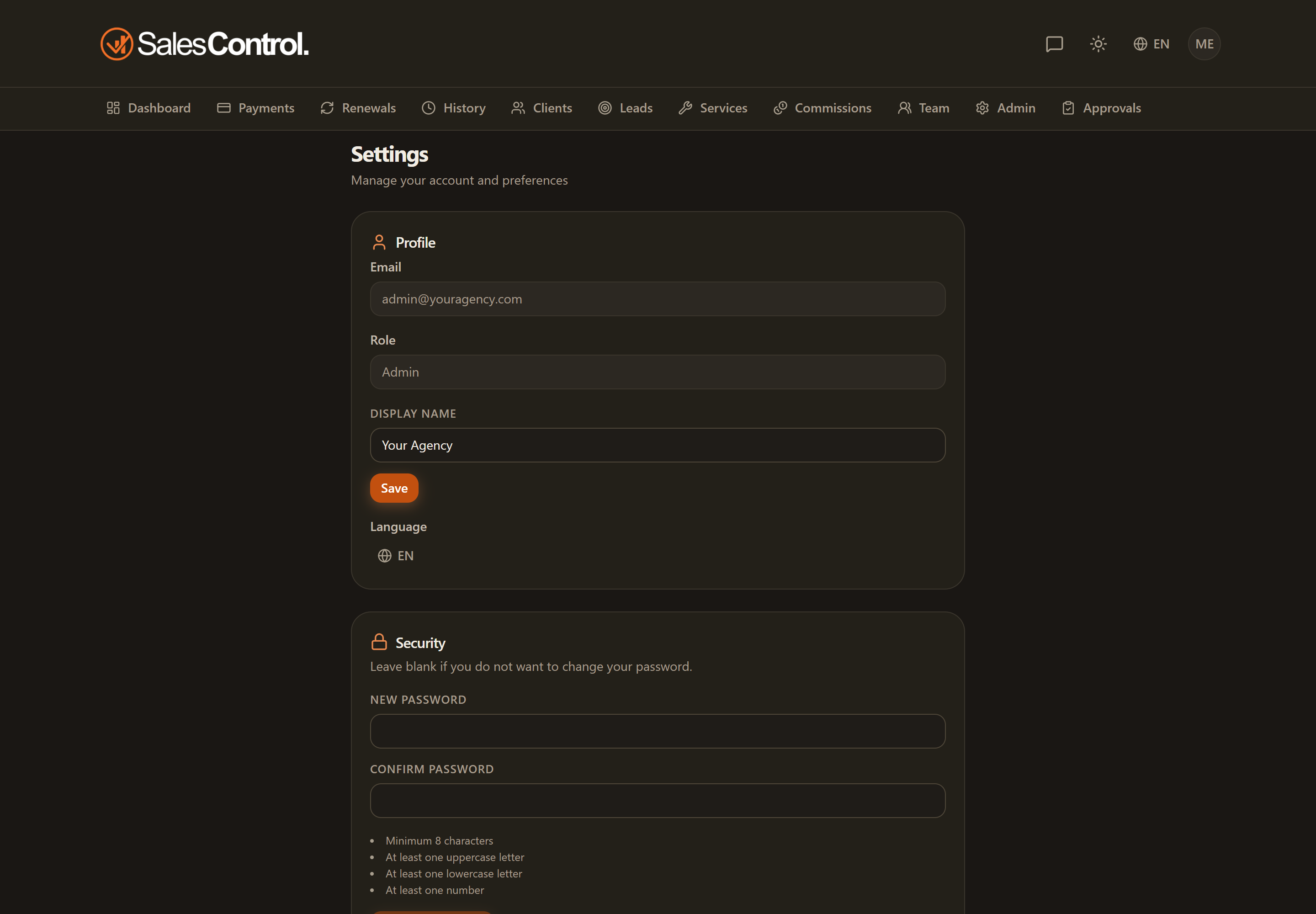
Where to find it
The page is called My profile (previously “Personal settings”: plain Settings now means the agency ones, reserved for admins). Open it from the gear icon in the app header; on mobile you’ll find it in the “More” menu of the bottom bar.
The light/dark theme is not here: you change it directly from the app header with the sun/moon icon. See Light and Dark Theme.
The sections
The Settings page is divided into these sections:
| Section | What it contains |
|---|---|
| Profile | Your display name and the app language. |
| Time zone | Your own time zone, if you are a team member. It decides the times you see and the times people can book you. |
| Google Calendar | The link to your calendar and your weekly availability for bookings. |
| Security | Changing your password and the minimum requirements. |
| Notifications | Enabling push notifications on your device. |
| Data and Privacy | Exporting your data and deleting your account (GDPR). |
| Chrome extension | The shortcut to the page where you install and link the extension that records calls from the browser. |
| About | App version and general details. |
Profile
In the Profile section you edit your display name and choose the interface language. See Profile and Language.
Security
In the Security section you set a new password (at least 8 characters with one uppercase letter, one lowercase letter and one number). See Security and Password.
Notifications
From Notifications you enable push on your browser or phone. Which events you receive and who receives them is decided by the admin under Admin › Notifications. See Push Notifications (on your device).
Time zone and Google Calendar
If you have a team row, this is where you set your time zone and connect your Google Calendar. These are not cosmetic details: the time zone decides the times you read in the Agenda, and a connected calendar does two things at once — your own commitments block the slots prospects see as free, and every booking creates the event with the Google Meet link on your calendar.
A new member cannot use the app until they have a language, a time zone, a phone number, Google Calendar connected with write access and weekly availability: a guided flow asks for them one at a time, skipping whatever is already in place. If you later revoke Google access, that step reopens. See A member’s first login.
Data and Privacy
In the Data and Privacy section you can export your data to a file or delete your account. See Privacy and Data (GDPR).
Chrome extension
The Chrome extension card leads to the page where you install and link SalesControl Recorder, the extension that records a call from your own browser when the bot cannot join. Linking, status and instructions all live there: here there is only the shortcut, Open the Extension page. See Recording from the browser.