Security and Password
From here you change your account password and learn about the protections SalesControl applies to block unauthorized access. It applies to every user.
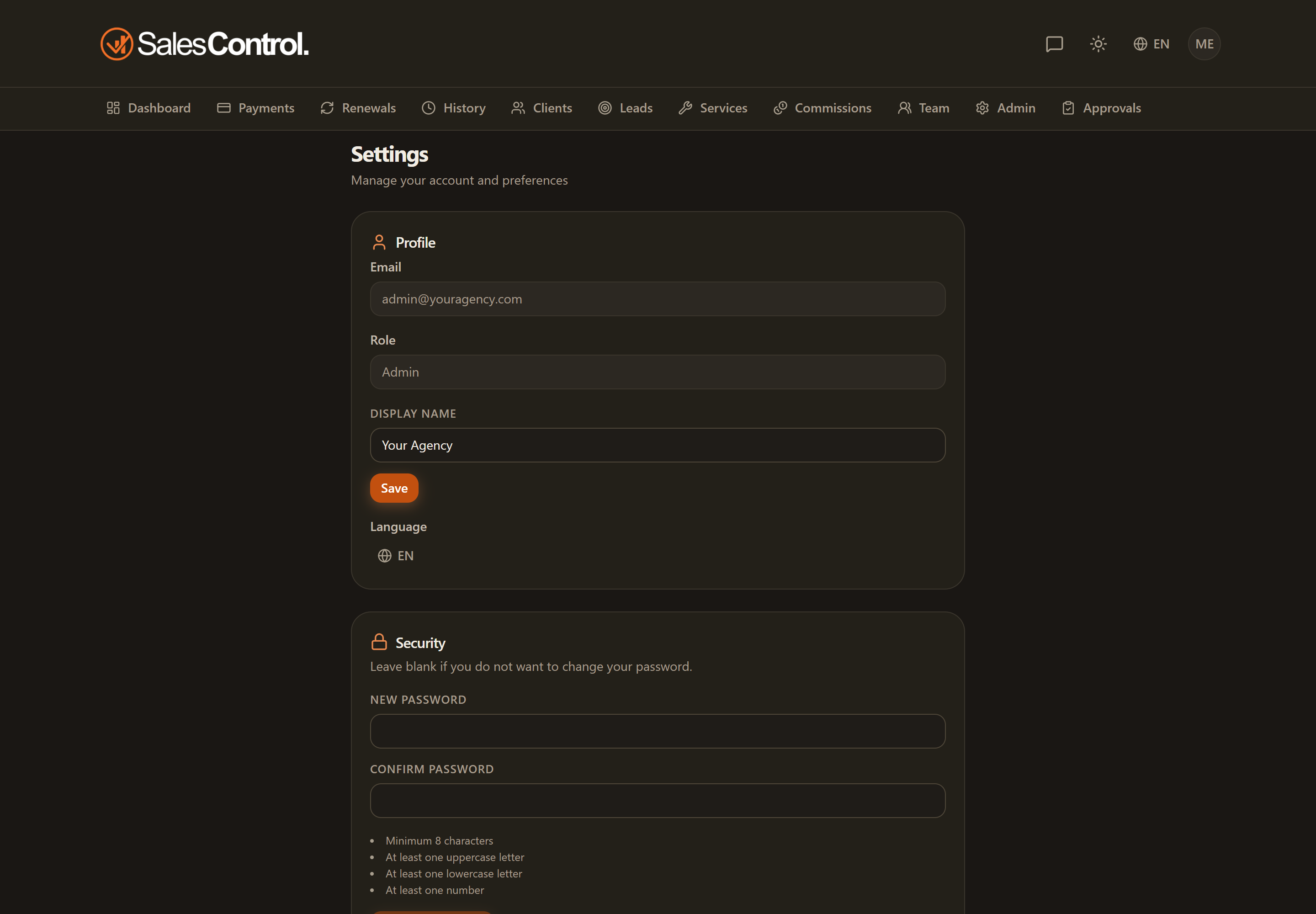
Where to find it
Go to Settings › Security. The section is available to every user.
Changing your password
Type the new password in the “New password” field.
Re-enter the same password in the confirmation field: the two fields must match exactly.
Confirm the change. You’ll see a success message; there’s no need to log in again.
Password requirements
The password must meet these criteria:
- At least 8 characters
- At least one uppercase letter
- At least one lowercase letter
- At least one number
As you type, each requirement is checked in real time: you immediately see which criteria are met and which are missing.
Protection against repeated login attempts
After 5 failed login attempts in a row, a 30-second lockout kicks in: during the wait the login button stays disabled. When it’s over you can try again. This stops automated attempts to guess the password.
If you forget your password
On the login page use “Forgot password?”: you receive an email link to set a new one (the same requirements apply). The full procedure is in the Password Recovery article.