Roles and Permissions
In SalesControl each person has one or more roles (what they do) and a set of permissions (what they can do in the app). Roles determine which data the member sees; permissions unlock individual actions. This guide explains both and includes the full table of configurable permissions.
This feature requires a paid plan (Starter and above). See Subscription Plans.
The roles
- Setter — handles acquisition: manages trials and the first contact with the potential client.
- Closer — follows the collections and renewals of the clients they closed.
- PM / Project Manager — manages the client operationally and takes part in the chat with them.
- Admin — has full access to the app: every page and every action.
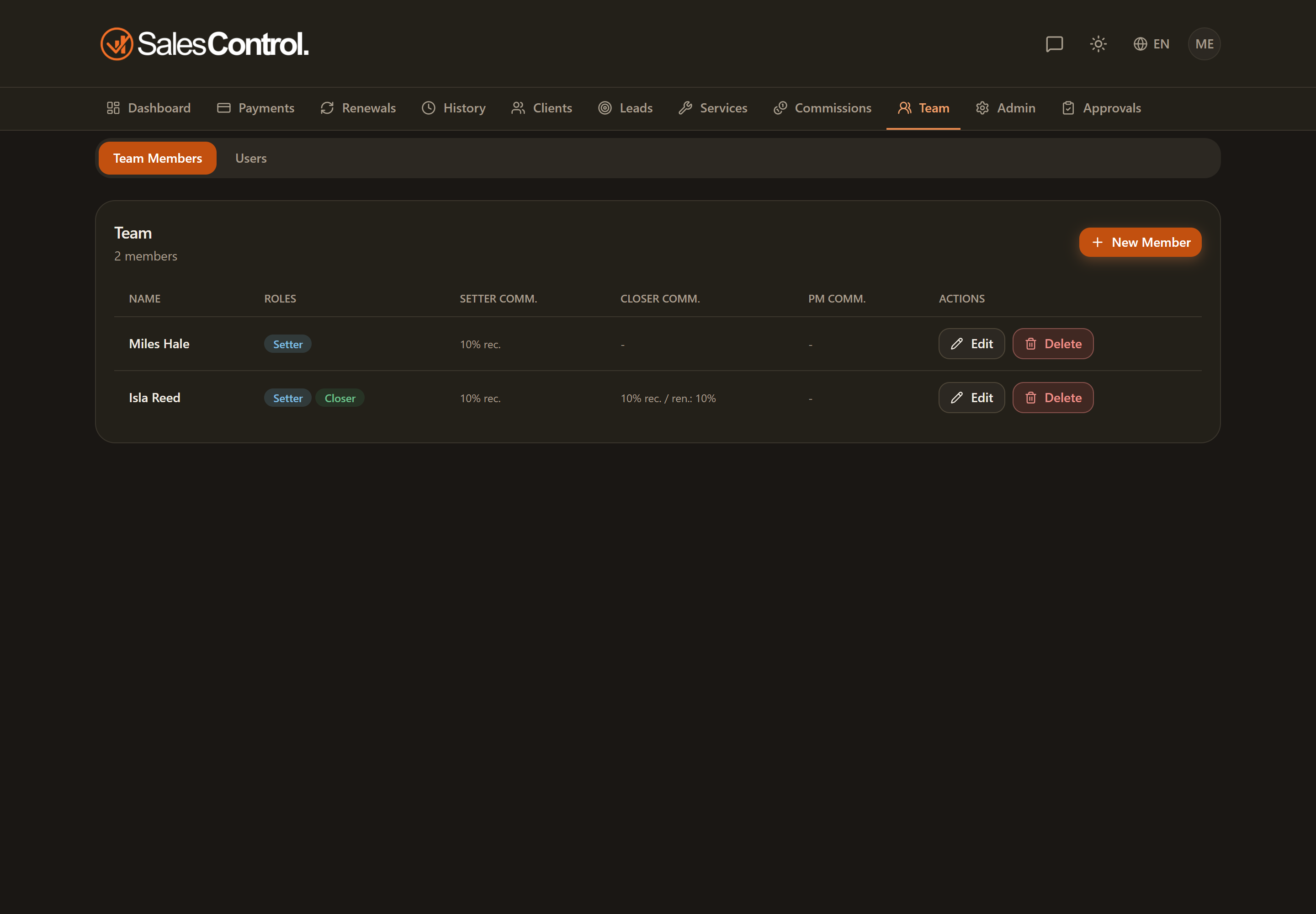
The same person can have several roles (for example Setter and Closer). Roles are assigned in the member’s card under Team: see Add a Team Member.
How permissions work
Each permission is a checkbox in the member’s card (Team). When it is on, the member can perform the corresponding action; when it is off, the related button doesn’t even appear.
The checkboxes live in the Permissions section of the card, grouped by area: Clients, Payments, Services & leads, Contracts, Logs. A sales manager can only grant their people the permissions they hold themselves.
Permissions only take effect if the member is linked to an approved Linked App User. Without that link, the checkboxes change nothing because the member doesn’t access the app.
The permissions table
Here are all the configurable permissions, with the label you see in the member’s card and what each one unlocks.
| Label (Team) | Flag | What it unlocks |
|---|---|---|
| Mark payments | can_mark_paid | Marking or undoing a collection; the trial actions in the “In trial” tab. |
| Create services | can_create_services | Creating, editing and deleting services. |
| Edit prices | can_edit_price | Editing a payment’s amount; the value field when creating a client. |
| Create clients | can_create_clients | The “New client” button. |
| Edit clients | can_edit_clients | Editing a client, pausing them, the client detail header, linking or unlinking Stripe. |
| Delete clients | can_delete_clients | Deleting a client. |
| Manage trials | can_manage_trials | Activating campaigns, fixing the date, completing or failing the trial. |
| Recalculate schedule | can_recalculate_schedule | Recalculating the payment plan; editing a single due date (with cascade). |
| View client logs | can_view_audit_logs | The “Logs” tab in the client detail page. |
| Edit contract fields | can_edit_critical_fields | The critical fields when editing a client: service, duration, value, payment type. |
| Confirm reconciliation | can_confirm_reconciliation | The Reconciliation tab and resolving the queue (history, ignore and reassign remain admin-only). |
| Can send contracts | can_send_contracts | The Contracts item in the menu and the Send contract button on a lead’s or a client’s page (resending included). |
| Can edit the contract when sending | can_edit_contract_sends | Tweaking the contract text in the send window, when the template allows it. |
| Can edit contract templates | can_edit_contract_templates | Creating and editing templates on the Contracts page. |
The Setter, Closer and PM roles are not permissions: they determine which data the member sees. The PM, in particular, is the only non-admin role that also sees the client chat.
Markets, when the agency has more than one
If the agency works across several markets, the member’s card shows a Markets field. For setters and closers it is mandatory: without at least one market the save is refused (“Pick at least one market: without one, no agency page can route to this member”) and the card reminds you that “At least one market is required for setters and closers”.
- Markets are chosen by the admin. A sales manager creating a member passes on their own markets automatically, and editing a member never touches that assignment.
- At the top of the Team page a notice counts the bookable members left with no market: no agency page will route to them.
- With a single market (or none) the field does not appear and nothing changes.
- A member assigned to one market does not see the market legend, dots and filter (in Leads, Clients, Agenda and Contracts): working in a single market, they would be the same colour on every row. Anyone with two or more, anyone with none, and admins do see them. The derivation itself stays on for everyone, and keeps deciding the contract language and the templates offered when sending.
Admin and Super Admin
All the permissions in the table are always on for Admins and Super Admins: you don’t need to (and can’t) enable them, because these roles already have full access. The checkboxes are only for team members.