Add a Team Member
A team member is a person you assign clients and commissions to: a Setter, Closer or Project Manager. Creating one is the first step to calculating their commissions and, if needed, giving them access to the app. Only Admins can add members.
This feature requires a paid plan (Starter and above). See Subscription Plans.
Where to find it
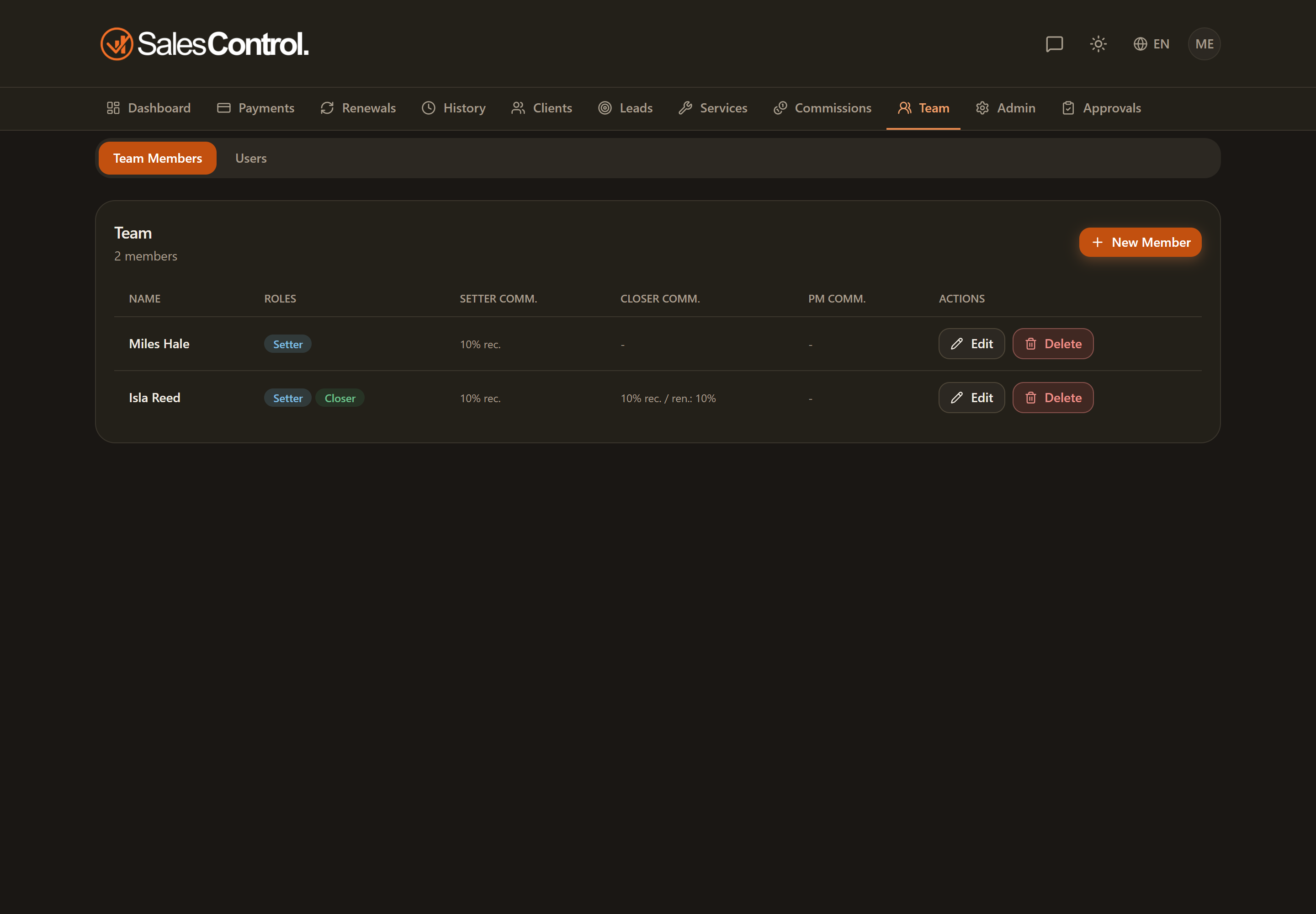
Open the Team page from the navigation bar. At the top you’ll find the New member button, visible only to Admins. Clicking it opens the creation dialog.
What the dialog contains
The form gathers everything the member needs:
- Name (required): the name the member will appear under everywhere in the app.
- Phone: a contact number for the member. If you leave it empty, the app asks them for it at their first login.
- Roles: Setter, Closer and PM. You can enable more than one for the same person (for example someone who is both Setter and Closer).
- Markets (only when the agency has more than one): mandatory for setters and closers. Without at least one market the save is refused, because no agency page could route to that member.
- Commission fields: for each active role, the fields to configure the related commission appear (percentage, type, renewal percentage, fixed amount).
- Linked App User: connects the member to an already-approved user account. It is this link that activates the permissions and lets the member see their data when they log in.
- Permissions: the checkboxes that unlock individual actions (marking payments, creating clients, and so on).
You can create a member even without linking them to an app user: it still works to attribute clients and commissions, for example to a collaborator who doesn’t use the app. The member will only see the app once you link them to an approved account.
Creating the member step by step
In Team, click New member.
Type the name and enable one or more roles among Setter, Closer and PM.
For each active role, fill in the commission fields. The details are in the Configure a Member’s Commissions article.
Under Linked App User choose the approved account to connect. Without this link the permissions have no effect.
Enable the checkboxes for the actions the member will be able to perform. If the role is view-only, leave them off.
Confirm: the member appears in the Team list and is immediately usable when assigning clients.
You don’t have to fill in everything at once: you can reopen the member’s card at any time to add a role, adjust the commissions or change the permissions.
What happens at their first login
When the member first signs in with the account you linked, the app asks them to complete their profile before letting them work: language, time zone, phone, Google Calendar and their weekly availability. They only see what is missing, so anything you already filled in on their card (phone included) is skipped. The details are in A member’s first login.
Deleting a member
Deleting a member is permanent. Before you proceed, consider whether there are clients or commissions still tied to that person: in many cases it’s better to keep them in the list and limit their roles or permissions, rather than deleting them.