Commissions Unpaid, Paid and Export
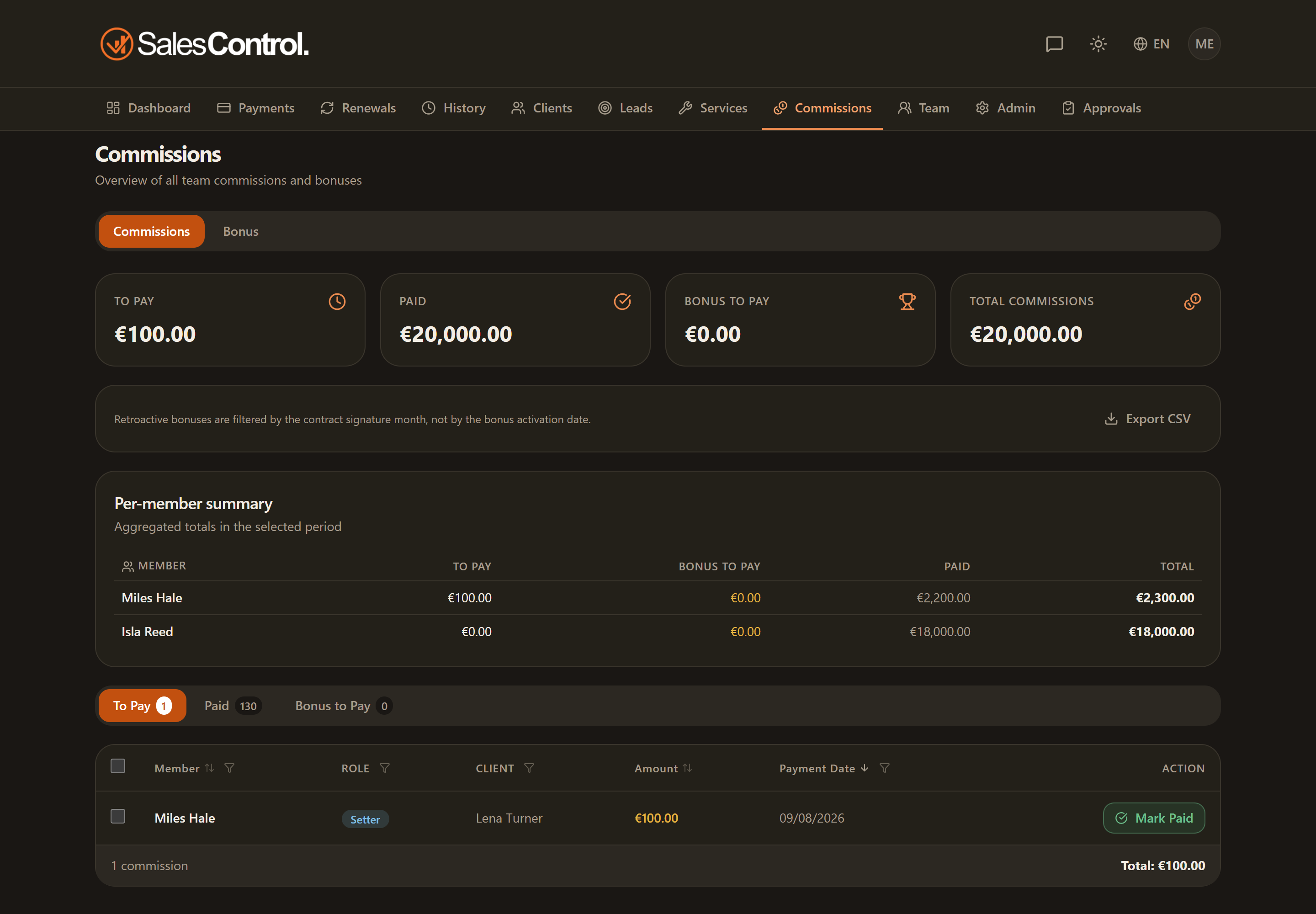
The Commissions page is your control center for knowing how much you owe team members, settling commissions in bulk and exporting the data for accounting.
This feature requires a paid plan (Starter and above). See Subscription Plans.
The summary cards
At the top you’ll find four cards that summarize the situation: Unpaid, Paid, Bonuses to pay and Total. They give you an instant picture of the amounts accrued and still owed.
Filters, aggregate and export
You can narrow the list with filters by member, roles, client and date range, combining them together. The member filter only lists the people you can see: everyone if you are an admin, themselves and their managed members if you are a sales manager. In addition you have:
- an aggregate per member, to see how much each one is owed in the chosen period;
- the CSV export, to take the filtered data into your spreadsheet or accounting.
The sub-tabs
The page is split into three sub-tabs: To Pay Out (accrued commissions on collected installments, not yet paid to the member), Paid Out and Bonuses to Pay. In each one you can use multi-select and the Mark paid button to settle several entries in bulk.
At the end of the month, open the Unpaid tab and filter by member and date range.
Tick the commissions to pay and use Mark paid: they move to the Paid Out tab with the disbursement date.
Use CSV export to archive or reconcile the disbursed amounts.
“Mark paid” records the disbursement inside SalesControl, but does not execute bank transfers: the actual payment to the member happens through your normal company channels.
Looking at it as a sales manager
A sales manager gets a switch at the top of the page with two options:
- Mine — only the commissions that are theirs, manager shares included.
- Team — the ones of the members they manage too, each with the name of whoever earns it. They are never added to the manager’s own total.
The admin marks every commission and every bonus as paid out. Any other member marks as paid out only their own commissions and their own bonuses, on a single row or with a bulk selection. A sales manager, in Team, can read the rows of the members they manage but cannot mark them: those rows have neither the button nor the selection checkbox.
Commissions paid on a reversed instalment
If an instalment is reversed when its commission had already been paid, the commission becomes a recovery: you find it under Commissions › Bonus to Pay, in the To recover group, with a negative amount and the reason “Instalment reversed”. One recovery is created for each member who had received a commission on that instalment.
You don’t have to recover it by hand: the next time you mark a commission or a bonus of that member as paid, the amount covers the recovery first, and the confirmation message tells you how much you actually have to pay out. If the member gave the money back some other way, use Mark recovered. All the details are in Paying Bonuses and Historical View; to understand how reversals arise, see Reversals, Refunds and Disputes.