Client Chat: Overview
SalesControl has one persistent conversation per client: a single thread of messages that replaces the old ticket system. You don’t open “new tickets”: you talk to the client always in the same chat.
This feature is available only on the Enterprise plan. See Subscription Plans.
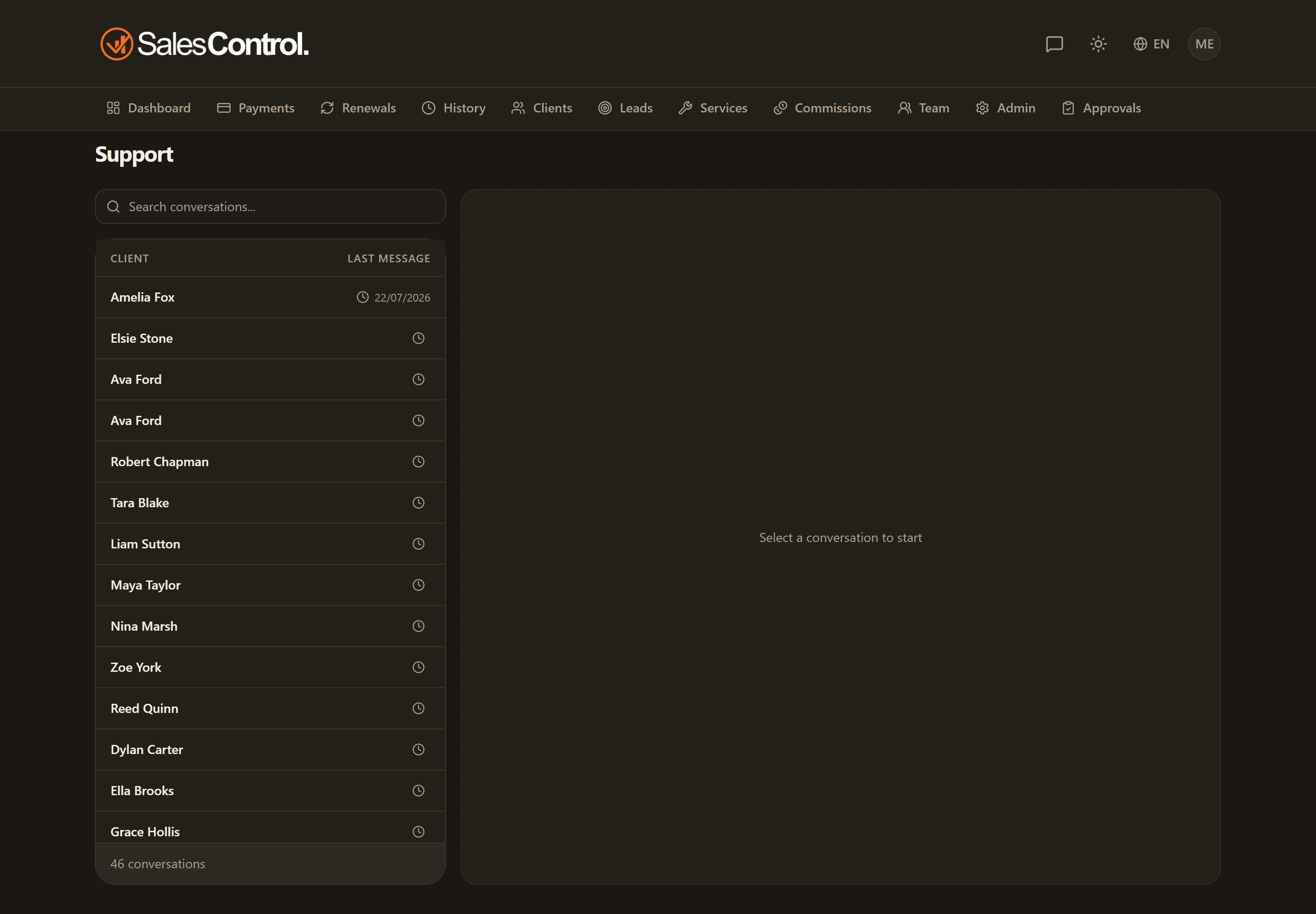
One chat per client
Every client has a dedicated conversation that stays over time: all exchanges remain in the same place, without having to open and close them. It is the channel through which the agency and the client communicate.
Who can see it
The conversation is visible to:
- Admins and Super Admins.
- The client’s PMs (Project Managers).
- The members assigned to the client.
The feature requires a plan that includes the chat, that is, the Enterprise plan.
The unread-messages badge
In the app header the Tickets icon (the speech bubble) carries a badge with unread messages: this way you notice right away when a client has written.
Where to open it
You can open the conversation from two places:
- From the client detail page.
- From the dedicated chat navigation item.
The client accesses the same conversation from outside through a permanent link. See The Chat Permanent Link and, for the client’s point of view, the Client Guide.
Replying to a specific message
In a long conversation, answering “yes, that works” is no longer enough — nobody can tell what it refers to. You can attach your reply to the message you mean, and a quote of the original will appear above yours.
The gesture depends on where you are, but the result is the same:
- On a phone: swipe the message to the right, or press and hold it for a moment.
- On a computer: hover over the message and use the control that appears, or right-click it.
It works both on the agency side and in the client portal, and the quote stays visible to everyone.
Pinning a message to the top
A message can be pinned to the top of the conversation: it stays there, always in sight, until you remove it or pin another one. Use it for the things people keep looking for — login details, the shared folder link, the agreed start date.
Pinning is done by admins and by team members taking part in the conversation. The client sees the pinned message but cannot change it.
There is one pinned message per conversation: pinning another one sends the previous back to its place in the history. Nothing is lost — it simply stops sitting at the top.
SalesControl’s automatic messages
People are not the only ones writing in the conversation. If the agency has turned on a notification’s Client chat channel, the message appears here as a system message, signed with the agency name and in the client’s language: payment reminders, contract expiry, failed charge, contract pause and resume, trial passed, and the Ecosystem alerts. They are turned on one by one under Settings › Client support chat, in Notifications in the group; out of the box they are all off. See Push and Email Notifications.
The events from the client’s Timeline — a contract renewed, a payment received, campaigns activated — can appear here too, as annotations in the middle of the conversation. They are turned on for the whole agency and picked type by type under Settings › Client support chat, in the Events in the chat card; for a single client you decide in their Timeline. See The Client Timeline.
Then there is the welcome message, which opens the conversation as soon as the client is created: you write it on the service, and it comes in two versions — one for contracts with a trial and one for contracts without, because you do not ask someone on trial to pay yet. See The Chat Welcome Message.
The other way round, when the client writes, the team gets the “Client chat message” notification: the email goes out in your agency’s frame, with a preview of the message and a button to open the conversation. Who receives it, and with what text, is decided under Settings › Notifications like every other type.
Turning reminders off for one client
One case needs a quick way out: the outstanding ad balance reminder, which repeats roughly every 48 hours until the client pays. If you are already handling it with them, automatic chasers are counterproductive.
Under that bubble, in the team chat, a Turn off reminders button appears: one click and for that client that reminder stops firing, on every channel. In its place stays the note “Reminders turned off by Name on date” with Turn reminders back on next to it. Admins and team members taking part in the conversation can use it.
- The client sees none of this: neither the button nor the note. They are not chat messages, and they do not show in the portal.
- The client Timeline keeps recording every alert, even with reminders off: the fact stays on record.
- When the episode closes — balance received, or ad account changed or disconnected — the mute lifts itself: a future block starts clean and nobody stays deaf forever.
- It is always reversible, with the same control.
Dates between messages
The conversation is split by day: above the first message of each day you get a line reading Today, Yesterday, the weekday name for the past week, and the date for everything older. Every message carries its time beside it. The same applies in the client portal.