Client Guide: Using the Chat
If you are a client of an agency that uses SalesControl, you have a direct chat with the agency: a single space to write, receive replies and exchange attachments. This guide explains how to get in and what you can do there.
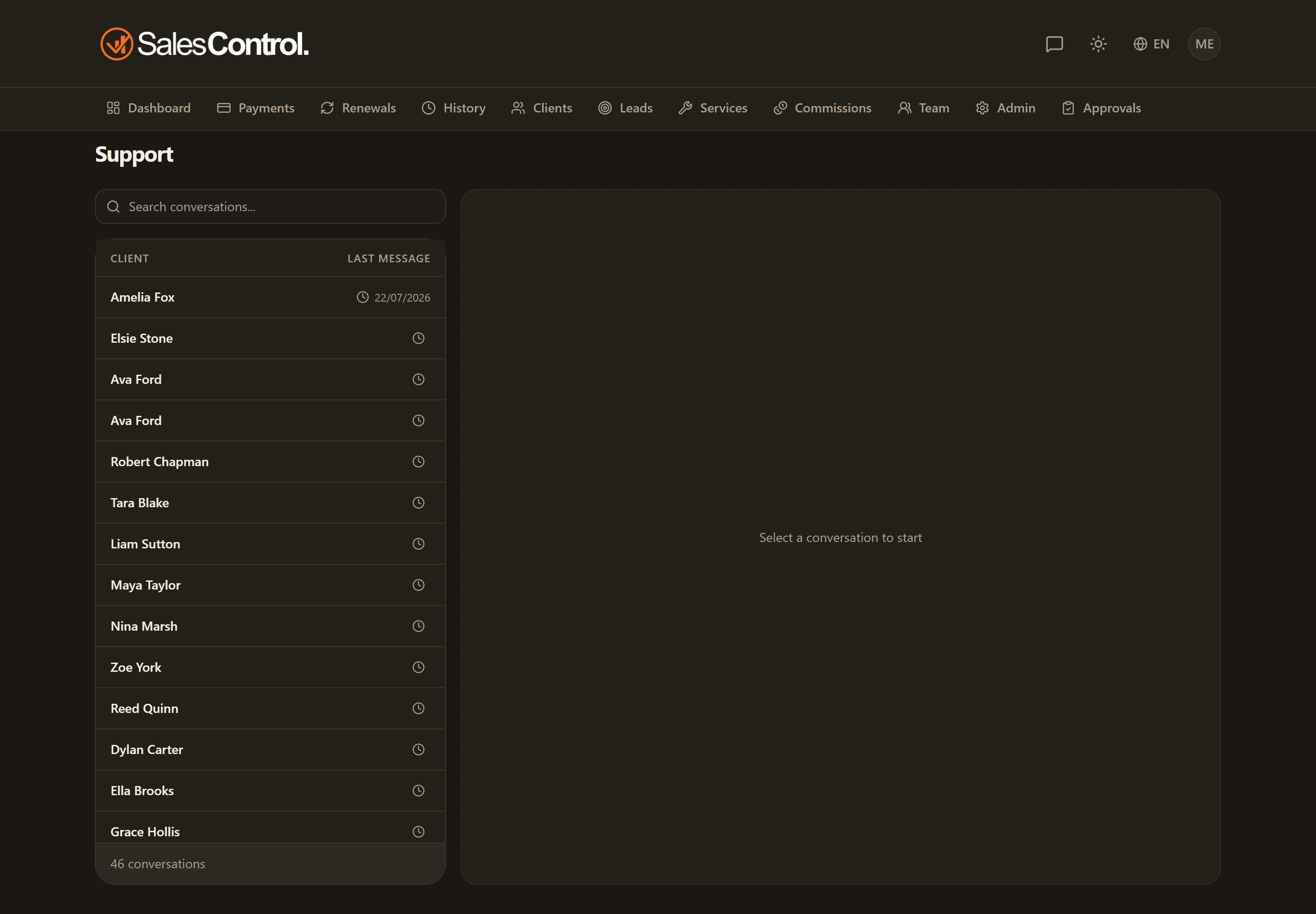
How to enter the chat
The agency gives you a personal link (of the form .../c/…). Opening it takes you straight into the conversation with the agency: you don’t have to register or remember a password.
Save the link in your browser bookmarks: it’s always the same and brings you back each time to your conversation, with the full message history.
Alternatively: sign in with email and password
If the agency has created a credentials-based login for you, you can also sign in from the /support page by entering your email and your password. You arrive in the same place: your chat with the agency.
What you see in the portal
The portal is deliberately simple. You see only what concerns you:
- Your conversation with the agency, with all the messages in order.
- The attachments shared by you or by the agency.
- The field to write a new message and the button to sign out.
You don’t see other clients’ data nor the agency’s internal information: the portal shows exclusively your chat.
Writing and attaching files
Click your personal link (or sign in from /support with email and password).
Type in the field at the bottom of the conversation and send. The agency’s replies appear in the same screen.
You can attach documents or images relevant to your request.
If the link stops working
The link can stop working, for example if the agency regenerates it for security reasons. In that case there’s nothing technical to do: ask the agency to send you a new link. Your conversation and its history stay right where they are.