Participants and Attachments
The people on the team who follow a client take part in that client’s conversation. The admin decides who is included, and in the chat you can also exchange files, not just messages.
This feature is available only on the Enterprise plan. See Subscription Plans.
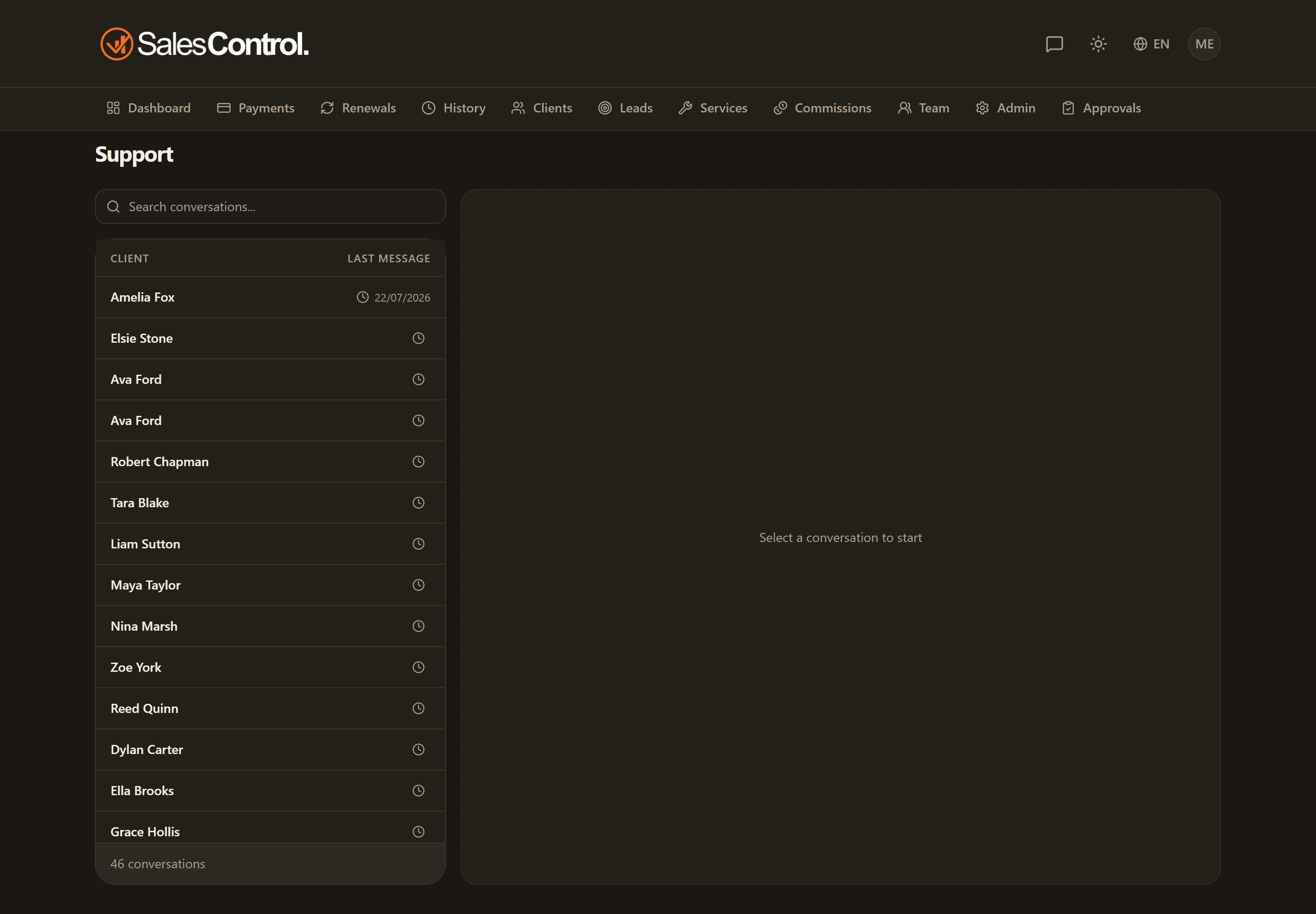
Who takes part
The client’s Setter, Closer and PM are added automatically. To these you can add other members manually, for example when you need to involve someone who is not assigned to the client.
Who joins automatically is up to the agency, under Settings › Client support chat, in Group members: you can drop one of the three roles or add all admins (only those who are also team members). The rule applies to new clients and whenever you change an assignee. To bring existing groups in line there is the Apply to all clients button: it adds the members the settings call for and removes the automatically added ones that no longer qualify, while members added by hand stay.
Managing participants
The admin manages participants from the chat’s side panel: from there you can see who is included and add other members to the conversation.
Sending attachments
You can send images, video, audio, PDFs and documents in the chat. Media files go up to 50 MB, other documents up to 10 MB. Handy for sharing briefs, reports or materials right inside the conversation.
Images and video are shown inside the conversation, with no download needed: a tap opens the image full screen, and video and audio come with their own player. The Save button downloads the file to the device, phones included.
Voice messages
Next to the message box there is a microphone: hold it to record, and when you stop you choose whether to send or discard. A voice note is often the quickest way to explain something complicated without writing twenty lines.
The team can always record. For the client, the ability has to be switched on, conversation by conversation.
The browser needs permission to use the microphone: it asks the first time, and if you deny it you have to re-enable it in the site settings. A voice note is an attachment like any other, so it can be downloaded and replayed later.
What the client can send
Two switches, per conversation, decide what the client may attach from their portal:
- Client media — photos and video. On by default.
- Client voice notes — audio messages. Off by default: turn it on when that client genuinely needs it.
They are changed by admins and by team members taking part in the conversation. When a switch is off the client does not even see the button — no error after picking a file.
The Media section
Everything exchanged in a conversation — images, video, audio, documents — is gathered in one place, so you never have to scroll back through months of messages. On the agency side it is the chat side panel; from the portal, the Media button. It is a view, not a separate folder: the files are still the ones in the messages.
New-reply notifications
New replies generate notifications, so participants notice when there is a new message without having to check constantly. In the app header the badge on the Tickets icon (the speech bubble) flags unread messages.
The participants are the team members; the client instead enters the same conversation through their link. See The Chat Permanent Link and Client Chat: Overview.