The Reconciliation Queue
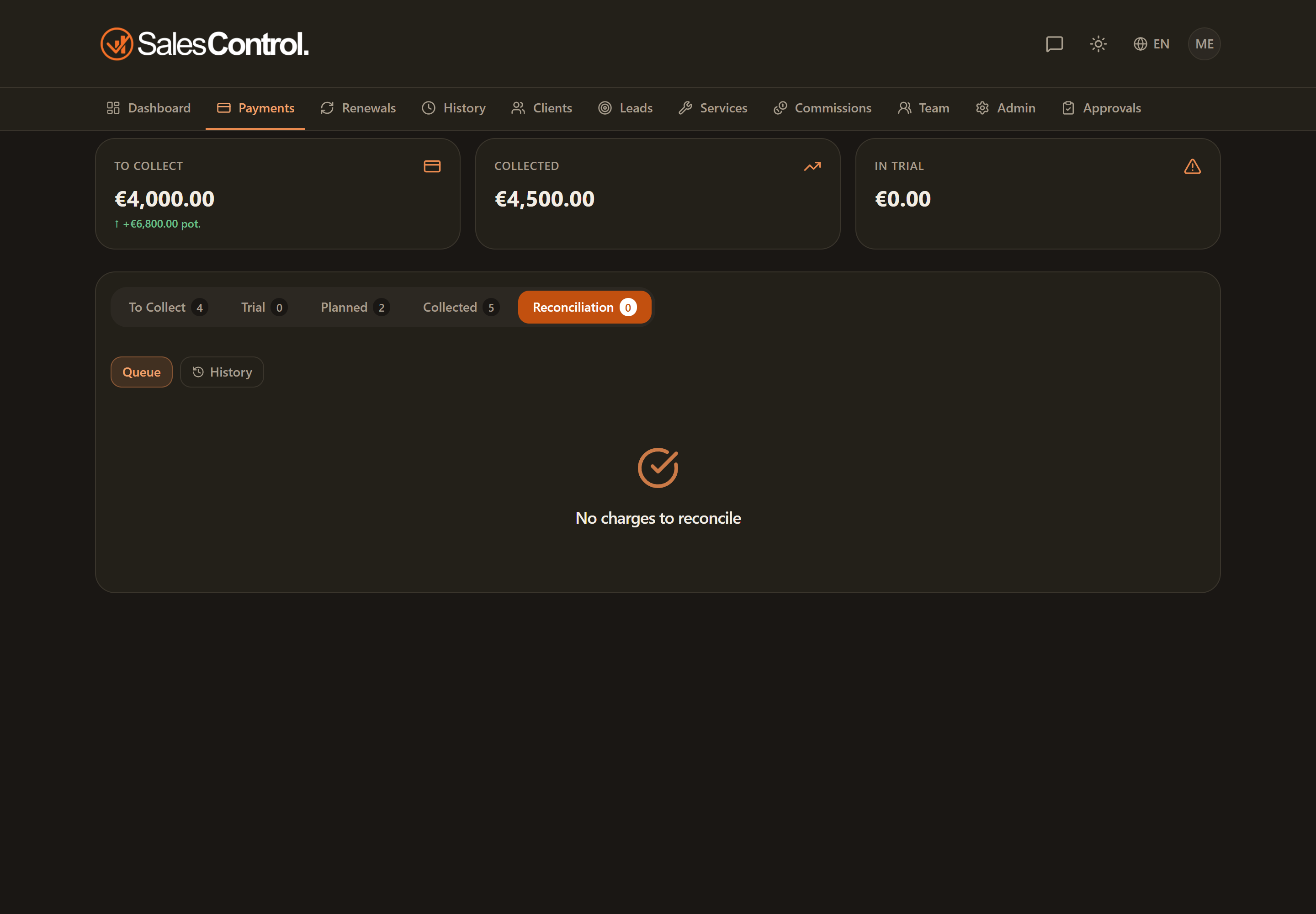
The reconciliation queue collects the Stripe payments the app couldn’t match with certainty to a client and an installment. From here you resolve them by hand in a few clicks, without losing any payment.
This feature is available on the Professional plan and above. If you don’t see it in the app, check your plan in Subscription Plans.
Where to find it
The queue is the “Reconciliation” sub-tab of the Payments page (it has a badge with the number of pending items). It’s available to Admins and to members with the can_confirm_reconciliation permission (“Confirm reconciliation”).
The count badge also appears on the Payments menu item, so you notice right away when there are payments to sort out.
What you see in each item
Each row in the queue is a payment that wasn’t matched with certainty and shows:
- the payer’s name and email (as they come from Stripe);
- the payment date and amount;
- the reason it wasn’t matched (for example: no matching client, several possible clients, no open installment).
Resolving a payment
On the item you’ll find the “Resolve” button. A window opens where you choose how to apply the payment:
Select the client the payment belongs to. Often the app already suggests one based on the payer’s name and email.
Apply the payment to an open installment of the client, or create a new, already-paid installment if the payment doesn’t correspond to any existing one.
On confirming, the payment is applied, the installment moves to Collected and the linked commissions are generated.
Alternatively, with “Ignore” (available only to Admins) you discard a payment you don’t want to record.
What happens when you resolve
When you resolve a payment, the app automatically does three useful things:
- it stores the client↔Stripe link, so that client’s next payments match on their own;
- it realigns the client’s due dates based on this payment (see Billing Anchor);
- it sends the relevant notifications (for example “Payment collected” to the salespeople involved).