Payment History and Reassignment
Besides the queue of payments to sort out, the Reconciliation tab has a History view with all the Stripe payments already applied. From here you can reassign a payment that landed on the wrong client or installment and put back in the queue the payments you had ignored.
This feature is available on the Professional plan and above. If you don’t see it in the app, check your plan in Subscription Plans.
Where to find it
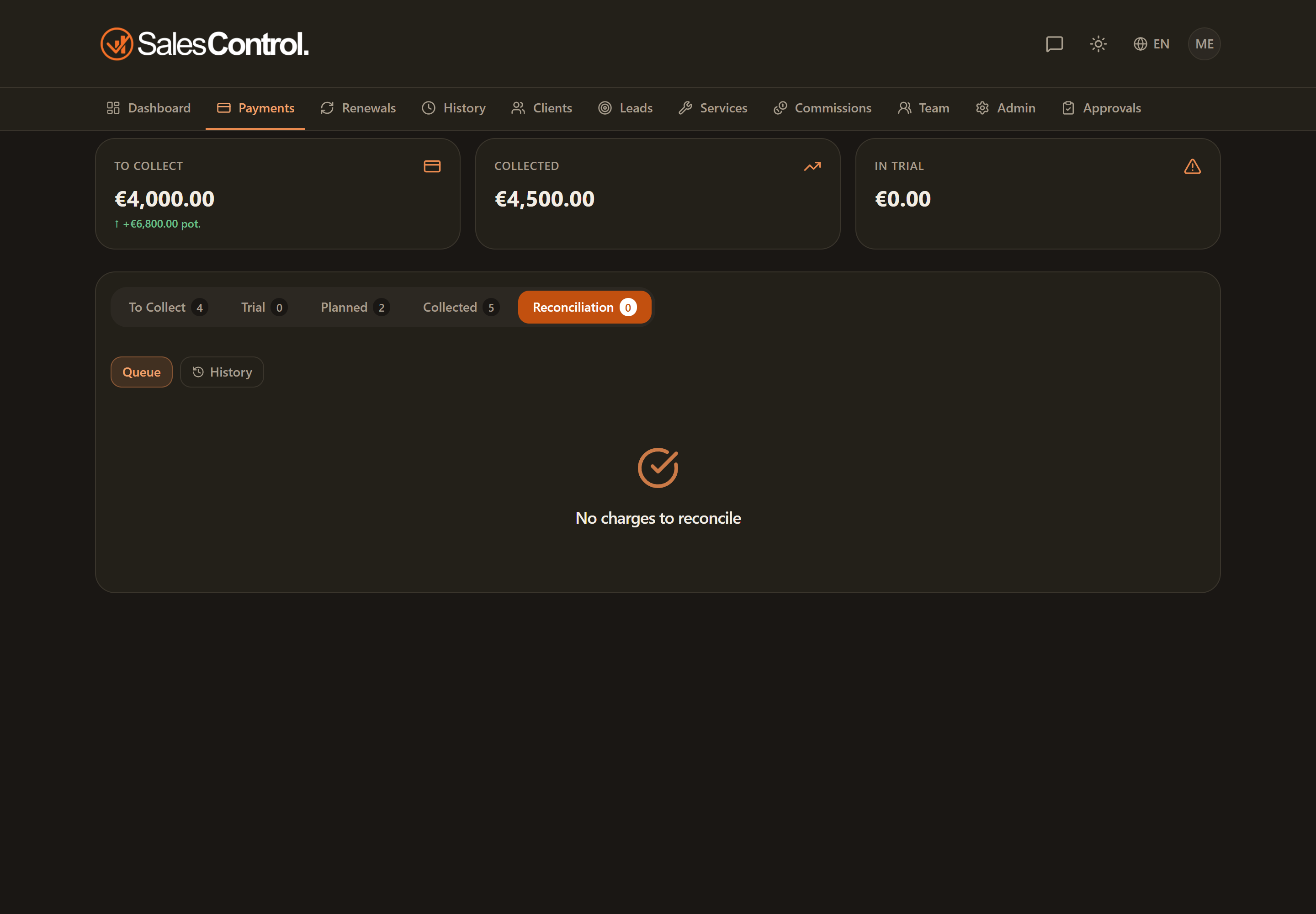
In the “Reconciliation” tab of the Payments page, besides “In queue” you’ll find the “History” sub-view, reserved for Admins. It lists the Stripe payments already applied.
The history badges
Each payment in the History has a badge indicating its origin:
| Badge | Meaning |
|---|---|
| Automatic | Matched by the app without going through the queue. |
| Manual | Resolved by you from the reconciliation queue. |
| Reversed | The payment was refunded or disputed. See Reversals, Refunds and Disputes. |
Reassigning a payment
If a payment was applied to the wrong client or installment, use “Reassign”: choose the correct client and/or installment to move it to. The app removes the payment from the old position and applies it to the new one.
If the correct installment had already been marked paid by hand, you can’t reassign over it: first open it among Collected and use “Mark unpaid”, then come back here and reassign the payment onto that installment.
After a reassignment always re-check commissions and bonuses: moving a payment can change who they go to and for which month. The app reminds you in the modal.
Restoring an ignored payment
The payments you discarded with “Ignore” don’t disappear: in the History you can select them and use “Restore to queue” to put them back among the items to resolve.