Create a Service
Services are your agency’s offering: when you create a client you choose the service, and from there the app calculates the contract value and generates the payment plan. Here you will see how to add a new one.
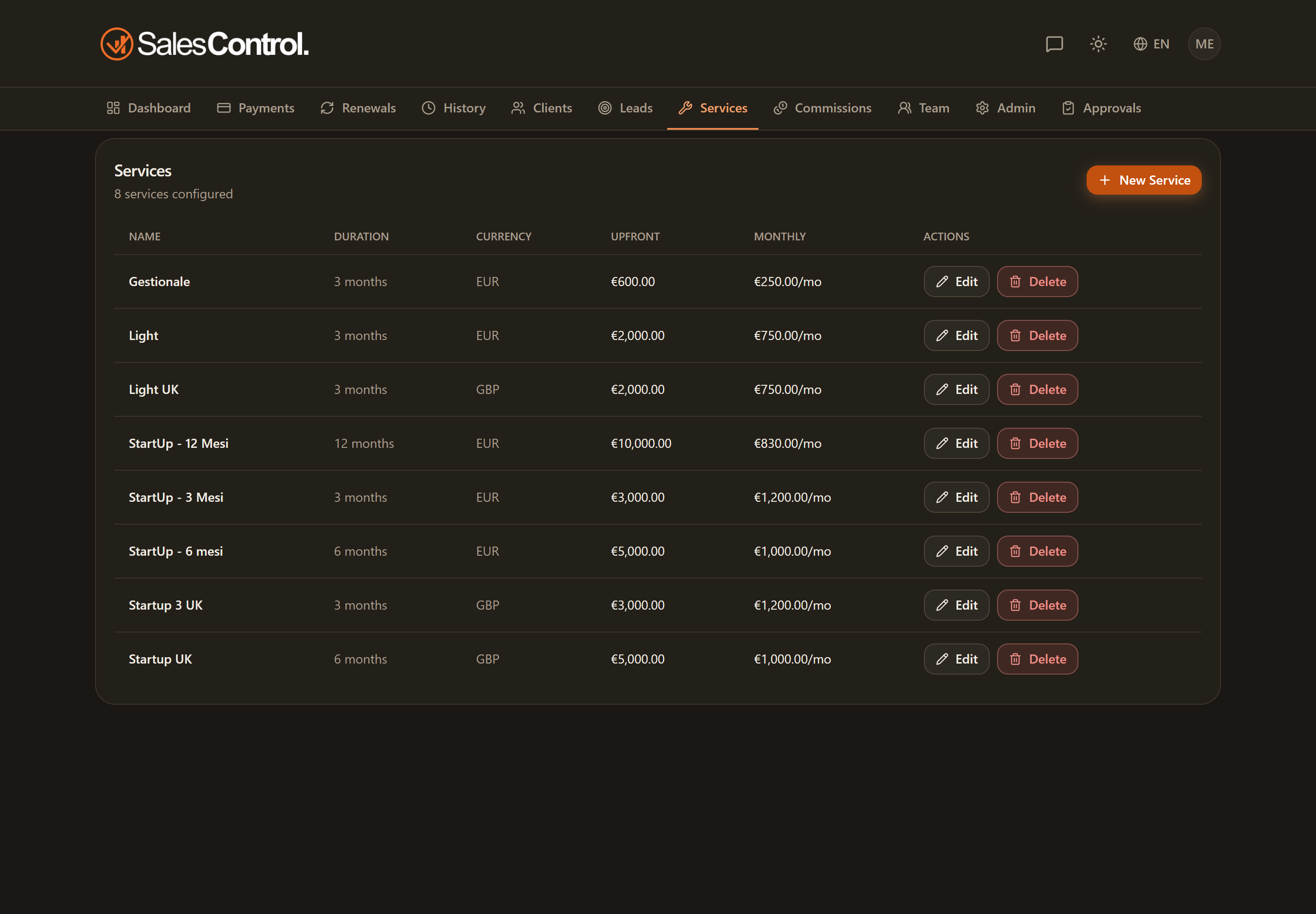
Who can create a service
The New service button requires the can_create_services permission (“Create services”). It is always on for Admins; for a team member the admin enables it in their card under Team. Without this permission the button does not appear.
The form fields
| Field | What it’s for |
|---|---|
| Name (required) | The name of the service, the one you see in the list and in client creation. |
| Currency | The service currency. It appears only if your plan includes multi-currency; otherwise the agency base currency is used. |
| Duration (in months) | How many months the contract lasts: it determines the number of installments in the monthly plan and the expiry date. |
| Upfront value | The amount paid in a single sum at the start (for Upfront-type contracts). |
| Monthly value | The amount of the monthly installment (for Monthly-type contracts). |
| Trial event target | How many events (appointments, deals, whatever you measure) it takes for the trial to count as passed, for clients starting on this service. Left empty, events are still counted but never close the trial on their own. |
| Trial window (days) | How many days the client has to reach the target, counted from campaign activation. |
The last two fields are the service defaults: on a single client you can override them in the create or edit form. They drive the automatic trial goal count — see Counting Trial Goals.
Commission percentages are not set here. Commissions are configured per team member, in their card under Team, not at the service level. See Configure a Member’s Commissions.
Linked contract templates
If your agency has contracts signed inside SalesControl, the services list carries a Contract templates column: it shows the names of the templates linked to that service, or No template in a warning colour. A service without a template is not an error, but no send can start from that service: the link is made from the template, under Contracts › Templates, in the “Linked services” field. The same service can have several templates: you pick which one to use when sending. See Creating a Contract Template.
If the template contains the Payment choice box, the signer is offered exactly this service’s two options: instalments (Monthly value × Duration in months) and upfront (Upfront value). They do not choose the number of instalments: it is the duration you set here. An option with no price does not appear, and a service with neither price blocks the send. See How the Client Signs.
Payment links
A service can carry one or more payment links, each with its own label: “Monthly payment”, “Initial balance”, “Annual renewal”. Add them in the service form with Add link and remove them as things change.
Each link gets a variable of its own (link_ followed by the label in lowercase, e.g. link_credit_card), shown as a chip under the payment instructions: name it in the right block, one-off or instalments, and the client gets the address. The name is born from the label on the first save and never changes.
Links reach the client through the payment instructions, which come out in the opening chat message, the “signed contract” email, the page after signing, the Trial passed notification and the payment and renewal reminders.
While the client is on trial both variables render empty: the links arrive with “Trial passed”.
Labels are translated automatically into the recipient’s language when multilanguage is on. Every time you edit the links the translations are redone, so for a few minutes a client may still receive them in the language you wrote them in.
When a card payment fails, the client also gets a link to put it right: if the charge came from a Stripe invoice it is that invoice, which stays payable; otherwise it is this service’s links.
Payment instructions
Below the links, the Payment instructions box has two tabs, One-off payment and Instalments: this is the place for the IBAN, the exact amount, the reference to write. The client only gets the block for their contract’s payment type, and if that block is empty they get nothing — never the other type’s instructions, which would be the wrong method.
You drop them into messages with the payment_instructions variable, and inside the blocks you can use eleven variables (contract value, instalment amount, number of instalments, currency, start date, client name, payment links). Examples and the full table are in Service Payment Links and Instructions.
The opening chat message
The Initial chat message box is posted by itself into the client conversation. It is the right place to say how the channel works, when you answer, and what you need to get started.
It has two tabs: Without trial and With trial (optional). The client’s contract decides which one is used; if the second is empty, a client on trial gets the “Without trial” text with empty payment links. Below the field is the chip for the payment_instructions variable: payment links are named inside the instructions.
With Automatically pin the initial message at the top of the chat ticked, that message stays at the top of the conversation, so the client always finds it — months later too. There is one switch and it covers both tabs.
The message appears when the client is created — from a signed contract, from the form or from your CRM webhook — and also when the service is assigned by hand later on. Changing it here does not rewrite conversations already open. This text is translated into the client’s language too when multilanguage is on, and the two tabs have separate translations. See The Chat Welcome Message.
How to create it
Go to the services page and click New service.
Enter at least the Name, then duration and upfront/monthly values according to your offering.
The service appears in the list and is immediately selectable when creating a new client.
You don’t need to create a different service for every discount: when creating the client the contract value can be customized (with the right permission). See Create a New Client.