Expiring Contracts
The Expiring tab of the Renewals page shows you the contracts that are about to end, so you can reach out to the client in time and propose the renewal before the service is interrupted.
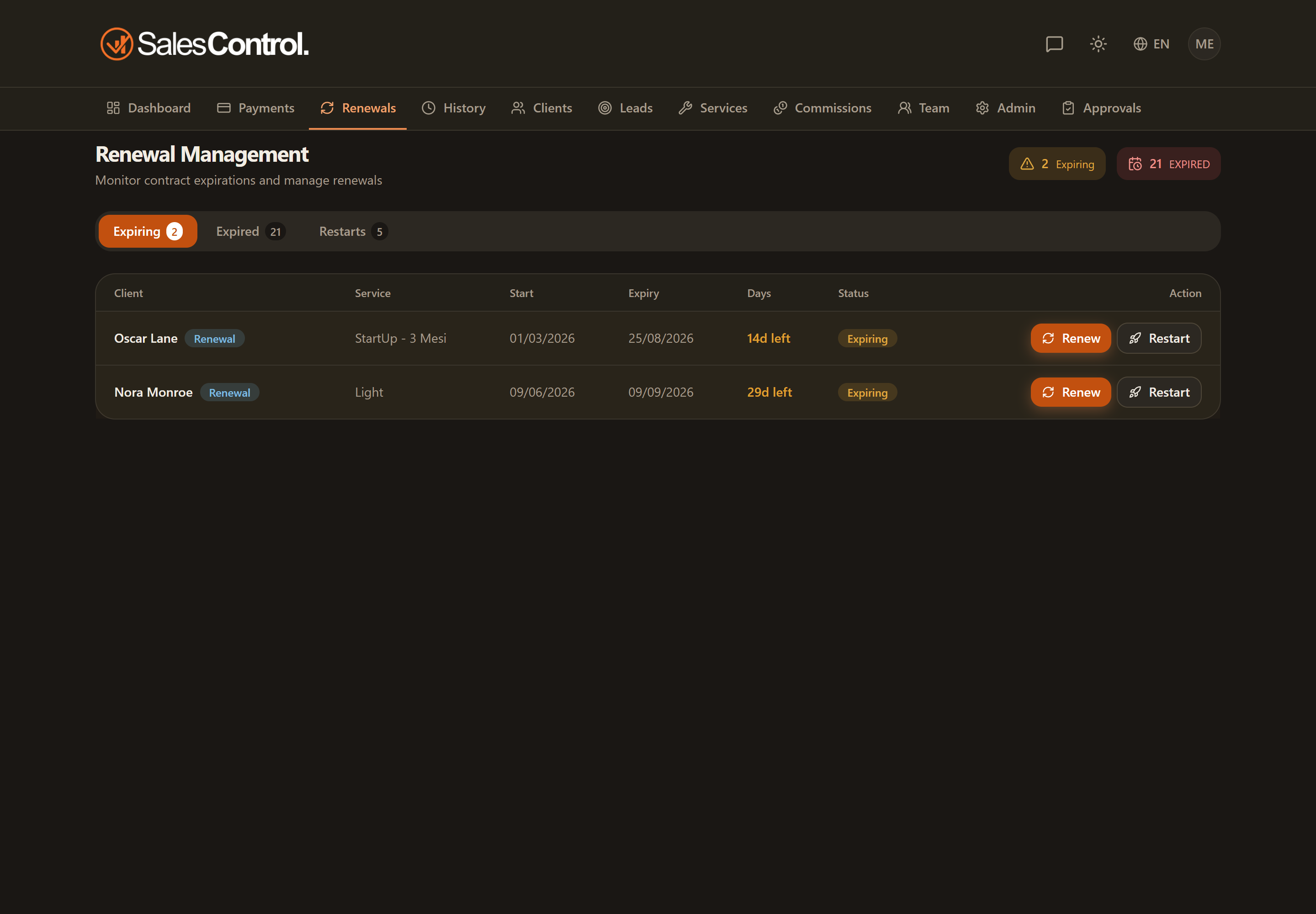
Which contracts appear here
The “Expiring” tab lists Active contracts (excluding those in trial) whose expiry falls within 30 days. Contracts that are more than 30 days away from expiry do not appear in this tab: they will show up as they get closer to their end date.
The expiry shown is the effective one: it takes extension pauses into account, which push the contract’s end date forward. A contract with an active extension pause can therefore stay out of the tab until its new effective date falls within 30 days. See Pausing a Contract.
What you see in the table
Each row represents an expiring contract. The main columns are:
| Column | What it shows |
|---|---|
| Client | The name of the client who holds the contract. |
| Service | The service of the current contract. |
| Start | The start date of the current contract. |
| Effective expiry | The real end date, including any extension pauses. |
| Days remaining | How many days are left until expiry, with a different color based on urgency. |
| Status | The contract status. |
Send the renewal contract straight away
Every row also carries Send contract: it sends the client the contract for the service being renewed, they sign on screen and restart on their own, with no renewal form to fill in by hand. The dialog arrives pre-filled with the terms of the contract in progress — service, value, duration and payment type as you negotiated them, not as they sit in the price list — and, as start date, the day after the effective expiry. Everything stays editable.
The button only shows if your plan includes contracts, you have the “Can send contracts” permission and the agency has at least one template linked to a service. After sending, a Contract sent on DD/MM chip appears next to the client’s name (and Contract viewed on DD/MM once they open it): the row stays here until they sign, and then the renewal moves it to Active on its own. See Sending a Contract for Signature.
A contract born from a renewal no longer carries a dedicated badge, neither here nor in the Clients list: the data is still recorded and still counts for bonuses and commissions, it simply no longer takes up room in the table.
The summary at the top
Above the table you’ll find a summary with two figures: Expiring (how many contracts are about to expire) and Expired (how many are already past their date). It helps you gauge at a glance how much renewal work lies ahead of you.
Use the Days remaining column to prioritize: start with the contracts that have the lowest number. When a contract reaches zero or goes negative, you’ll find it in the Expired tab, where the Renew button appears.