Interface Tour
Before you start working, get your bearings around the main areas of SalesControl: the sidebar, the header with its controls, and the badges that flag things to take care of. This guide shows you where they are and what they do.
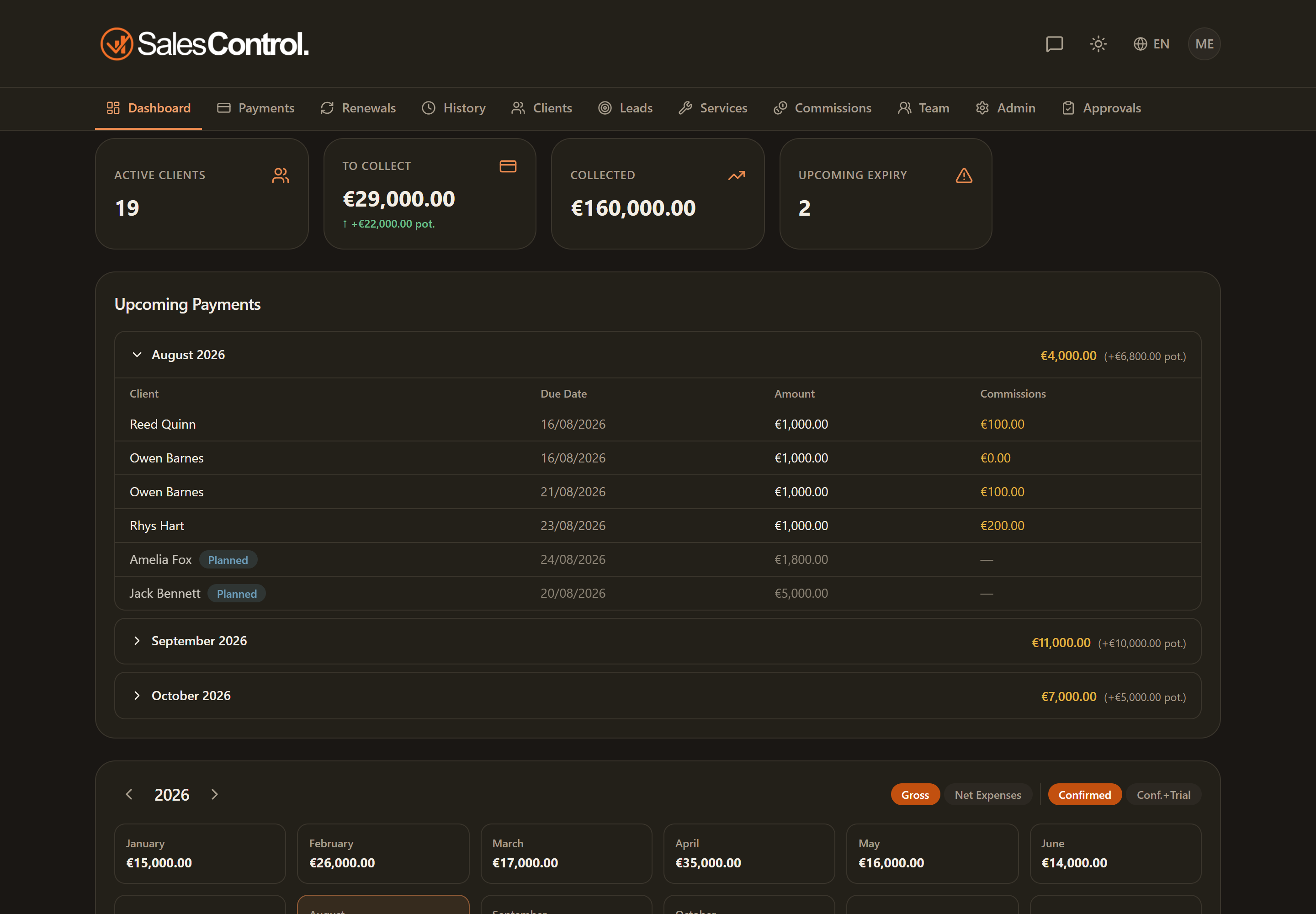
The sidebar
On desktop the app’s sections live in a sidebar on the left, full height, with the agency logo at the top and your profile at the bottom. The items are gathered into groups you can open and close by clicking their heading; the choice is remembered on that browser, and if a closed group holds something to handle its heading shows the number.
| Group | Items |
|---|---|
| — | Dashboard |
| Bank | Payments · History |
| Agency | Clients · Renewals · Services |
| Sales | Leads · Agenda · Recordings · Contracts |
| Team | Members · My team · Commissions |
| Admin | Settings · Approvals |
- Recordings sits in the Sales group, between Agenda and Contracts: it is the list of recorded calls.
- Contracts shows for whoever can edit templates or send contracts (admins always).
- Members and My team are for admins and sales managers: the second is the dashboard with the stats of every person on the team.
- Settings and Approvals are admin-only.
On mobile the bar stays at the bottom with the 5 main items (Dashboard, Payments, Clients, Renewals, Commissions), plus the “More” menu, which gathers every other item in the same groups as the sidebar.
You only see the items your role can use: the interface adapts to your permissions. For details on navigating on your phone see Mobile Navigation.
The header at the top
At the top of the app you’ll find a set of quick controls:
| Element | What it does |
|---|---|
| “View as” banner | Appears only when an Admin is impersonating a team member: it reminds you who you’re viewing and lets you exit. |
| Logo | Takes you back to the Dashboard. |
| Tickets (speech bubble) | Opens the client chat; a badge signals unread messages. |
| Theme toggle (sun/moon) | Switches between light and dark theme. |
| Bell | Opens your notifications: the latest ones, with a badge counting the unread ones. Clicking a notification marks it as read and takes you to the right page; Mark all as read clears the badge and View all opens the history of the last 7 days. Everyone sees only the notifications addressed to them. |
| User menu (initials or avatar) | Shows which account you’re signed in with and opens My profile and Log out. On desktop you also find it at the bottom of the sidebar. |
The light/dark theme is changed from the header (not from Settings) and offers only light or dark. The language, on the other hand, is changed from Settings › Profile.
The badges on menu items
Some items show a small number (badge) when there’s something to handle:
- Approvals: change requests waiting for your go-ahead (Admin).
- Payments: Stripe collections to sort out in the reconciliation queue (Admin).
- Agenda: calls that appeared since the last time you looked at the Agenda.
If the group holding them is closed, the number appears on its heading: nothing escapes you even with the menu folded away.
Real-time updates
The app updates on its own: when you or a colleague record a collection, create a client or change something, the open pages update in real time. There’s no need to reload the page.