Mobile Navigation
On the phone SalesControl rearranges itself to sit comfortably under your thumb: instead of the desktop top bar you find a bottom bar with the main items and a More button for everything else.
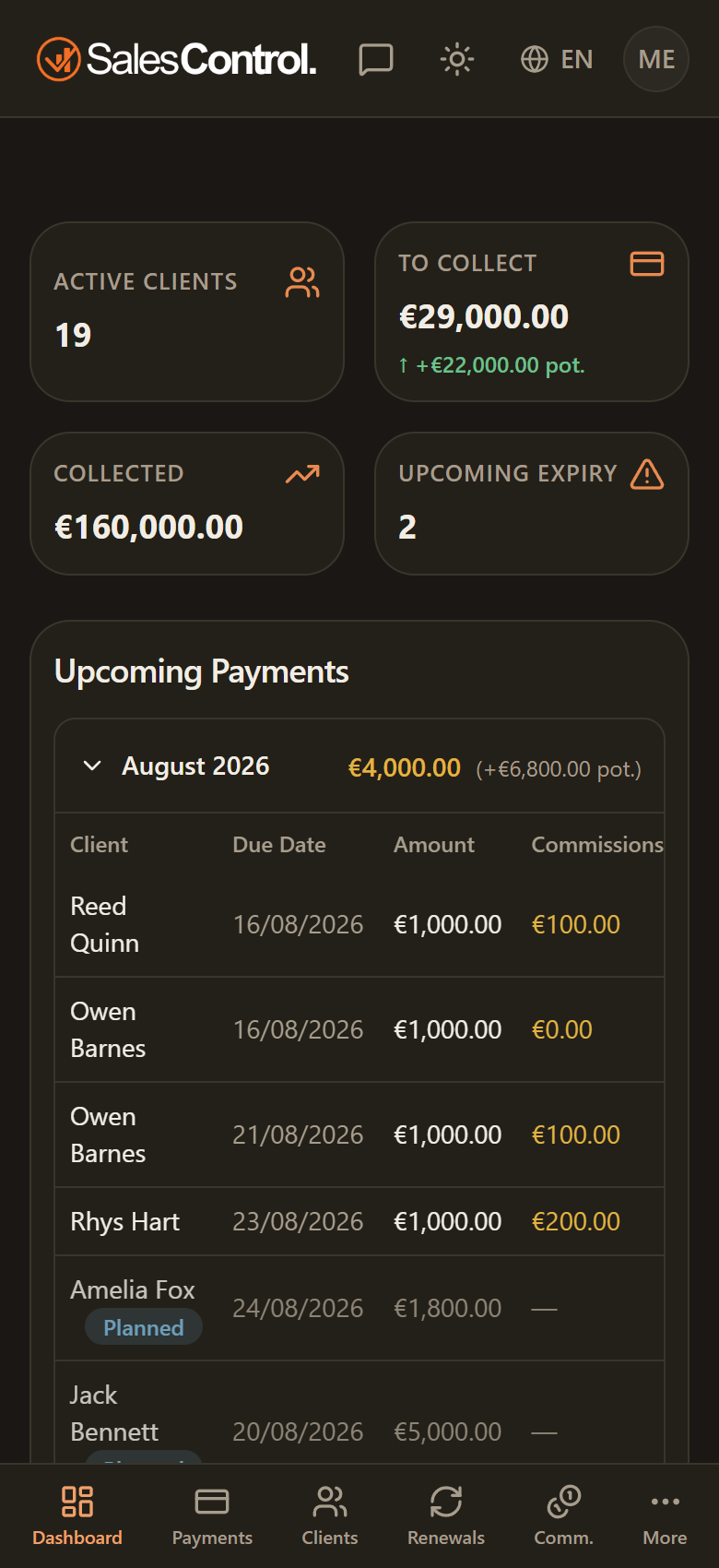
The bottom bar
At the bottom of the screen there are five icons, the sections you use most often:
- Dashboard
- Payments — with a badge when there are collections to reconcile;
- Clients
- Renewals
- Commissions
Tap an icon to open its page. The active item is highlighted.
The “More” button
The More button opens a menu with every item that does not fit in the bar, grouped exactly like the desktop sidebar: Bank (Payments, History), Agency (Clients, Renewals, Services), Sales (Leads, Agenda, Recordings and, where enabled, Contracts), Team (Members, My team, Commissions) and Admin (Settings, Approvals, with a badge when there are pending items). Everyone only sees the items their role allows.
With the grouped menu, three items were renamed: Team → Members, Admin → Settings, Personal settings → My profile.
The badges on the icons signal that there’s something to look at: collections to reconcile on Payments, requests to review on Approvals. They update in real time, so they appear and disappear on their own as you handle the items.
The “Help” button
On a computer the SalesControl support chat is a bubble floating in the bottom-right corner. On a phone that corner belongs to the page buttons, so the bubble is gone: in its place, in the top header, there is a Help button. It opens the same conversation, with the same history and the same unread dot.
Only the agency admins see it, on the plans that include the support live chat. See The Support AI Assistant.
The light/dark theme and the notifications bell stay in the top header on mobile too; the language is changed from Settings › Profile. For a general tour of the interface see Interface Tour.