Install the App (PWA)
SalesControl is an installable web app (PWA): you can add it to your phone’s home screen and use it like a regular app, with its own icon and full screen. No store needed: it installs straight from the browser.
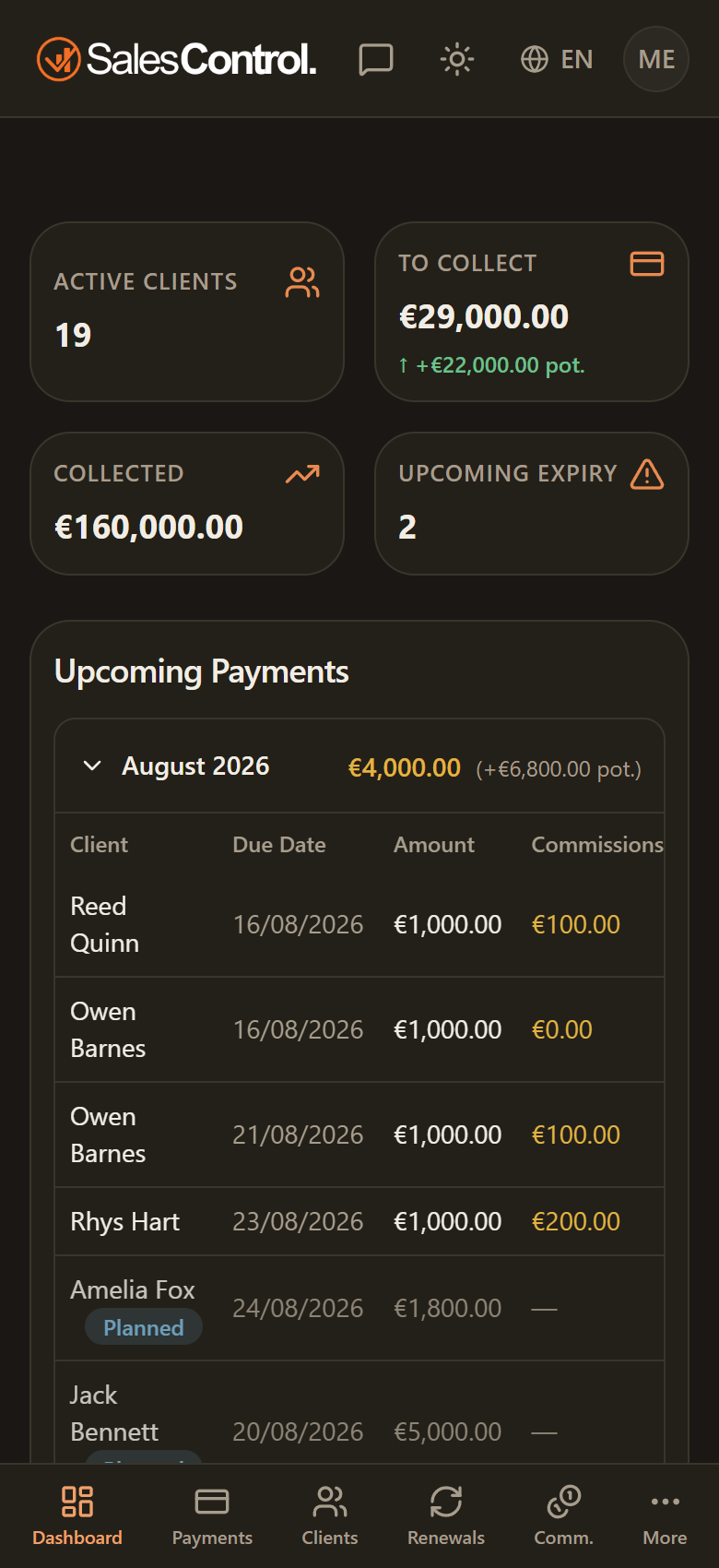
Android (Chrome)
Access the app from the browser as you usually do.
Tap the three dots in the top right.
The item may also be called “Install app”. Confirm to complete.
iPhone and iPad (Safari)
On iOS installation works from Safari.
It’s the square icon with an upward arrow, at the bottom center.
Scroll the options, tap “Add to Home Screen” and confirm.
What changes after installation
Once installed, the app:
- has its own icon on the home screen;
- opens full screen, without the browser’s address bar;
- can receive push notifications.
To receive alerts (collections, commissions, reminders) remember to enable notifications: see Push Notifications (on your device).
The exact names of the items may vary slightly depending on the browser or system version, but the path is always the same: menu / Share → add to home.
The icon with your agency’s logo
If your agency is on a plan that includes the custom logo and has uploaded its square logo, the icon that appears on the home screen shows the agency’s logo instead of the default SalesControl icon. There is nothing to set up: it works automatically at install time, on iPhone and iPad as well as on Android. The app’s name still reads “SalesControl”: only the icon changes.
Without an uploaded logo, or on a plan that does not include this feature, you get the standard SalesControl icon. After a logout or a switch to another agency in the same session the app also falls back to the default icon: you will never see the previous agency’s icon.
iOS saves the icon at the exact moment you add the app to the home screen. If your agency uploads or changes its logo afterwards, the icon already on your phone does not update on its own: remove it and add it to the home screen again to see the new one.