Connect Your Stripe Account (Wizard)
To turn on automatic collections you connect your agency’s Stripe account to SalesControl. In Admin › Integrations a two-step wizard starts: first you create a read-only key, then you set up the webhook that sends payment events to the app. An Admin user is required.
This feature is available on the Professional plan and above. If you don’t see it in the app, check your plan in Subscription Plans.
Before you start
Keep your Stripe dashboard (dashboard.stripe.com) open in another tab, signed in to the agency account. You’ll go back and forth between Stripe and SalesControl a couple of times: the wizard always tells you what to copy and where to paste it.
Step 1 — Create the restricted key
The restricted key (in Stripe, restricted key) is a read-only key: it lets SalesControl read payment events without being able to move money.
In the Stripe dashboard go to the Restricted keys section and choose “Create restricted key” (not “Create secret key”).
As the use case, select “Powering an integration you built”.
As the permissions template, choose “Reporting, analytics, and accounting”: it’s the starting point closest to what’s needed.
Set every item to “Read” (irrelevant items stay on “None”). The write permission (“Write”) is never needed.
Give the key a name, create it and copy the value (it starts with rk_). Go back to SalesControl, paste it into the wizard field and confirm: the app validates it right away, checking that it’s a restricted key with the correct permissions.
Stripe shows the full key value only once: copy it before closing that screen. If the app reports an error (not a restricted key, invalid key, or missing permissions), regenerate the key following the points above.
Step 2 — Set up the webhook
The webhook is the address Stripe sends events to (for example “payment succeeded”). This is how SalesControl receives them in real time.
In the wizard, SalesControl shows you the webhook URL to use: copy it.
In the Stripe dashboard open dashboard.stripe.com/webhooks/create and paste the URL as a new endpoint.
Select exactly the events listed by the wizard (they cover successful payments, refunds, disputes and failed charges).
After creating the endpoint, Stripe shows you the “signing secret” (it starts with whsec_): copy it, go back to SalesControl, paste it and finish. From here on, collections start coming in.
The wizard is resumable: if you stop after Step 1, when you return to Admin › Integrations it resumes from Step 2 and shows you the webhook URL again. You don’t have to start over.
Once connected
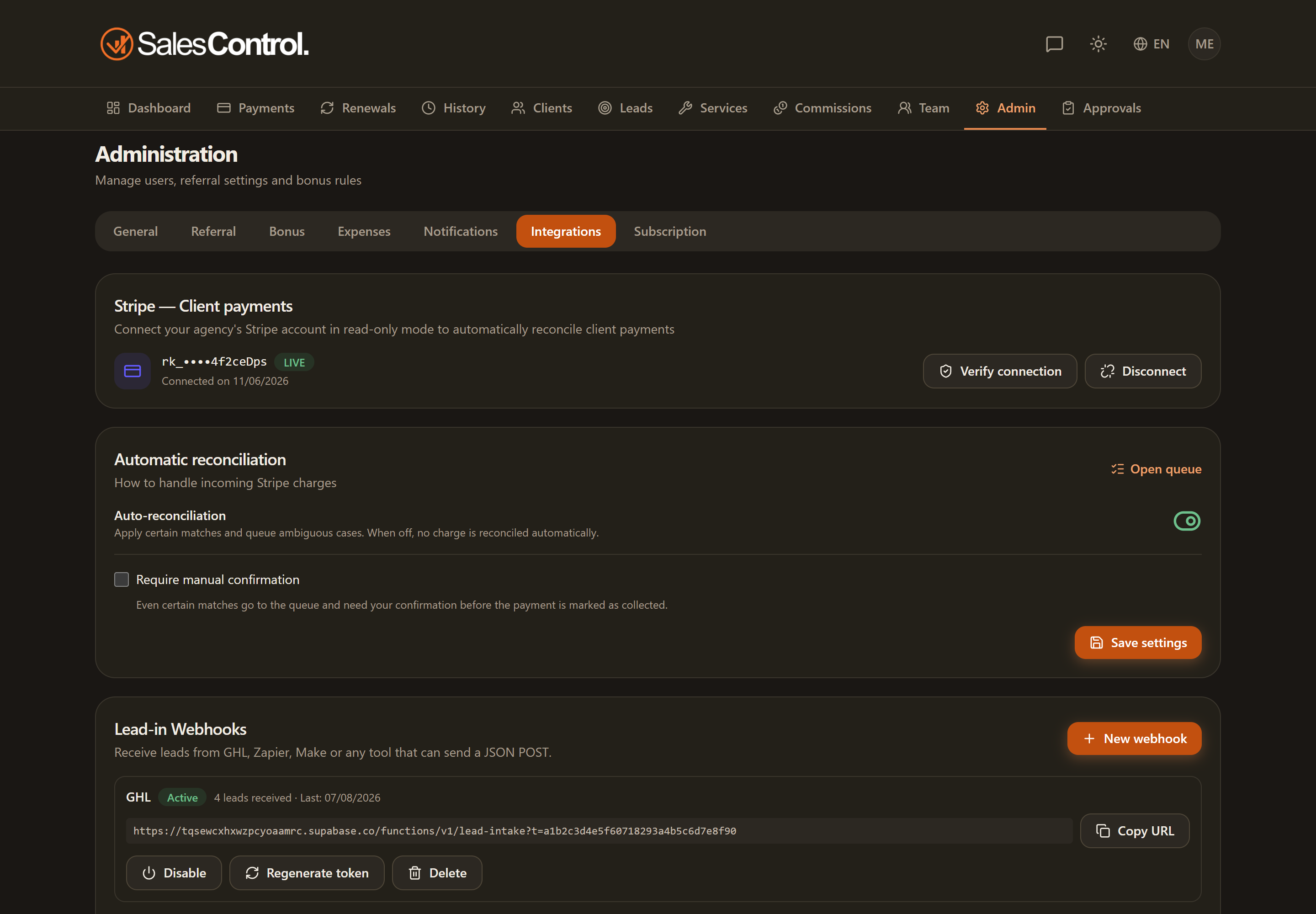
When the connection is complete, on the Integrations page you see:
- the masked key (
rk_••••with the last digits); - a TEST/LIVE badge indicating the account’s mode;
- the Verify button (re-checks that the key is still valid) and Disconnect (removes the connection).
If you disconnect the account, remember to also remove the key and the webhook endpoint from your Stripe dashboard, to keep things tidy.