Payments To Collect
The To collect tab lists the confirmed installments you haven’t collected yet. It’s your working list: from here you see what’s coming due, what is already overdue, and you mark collections as they come in.
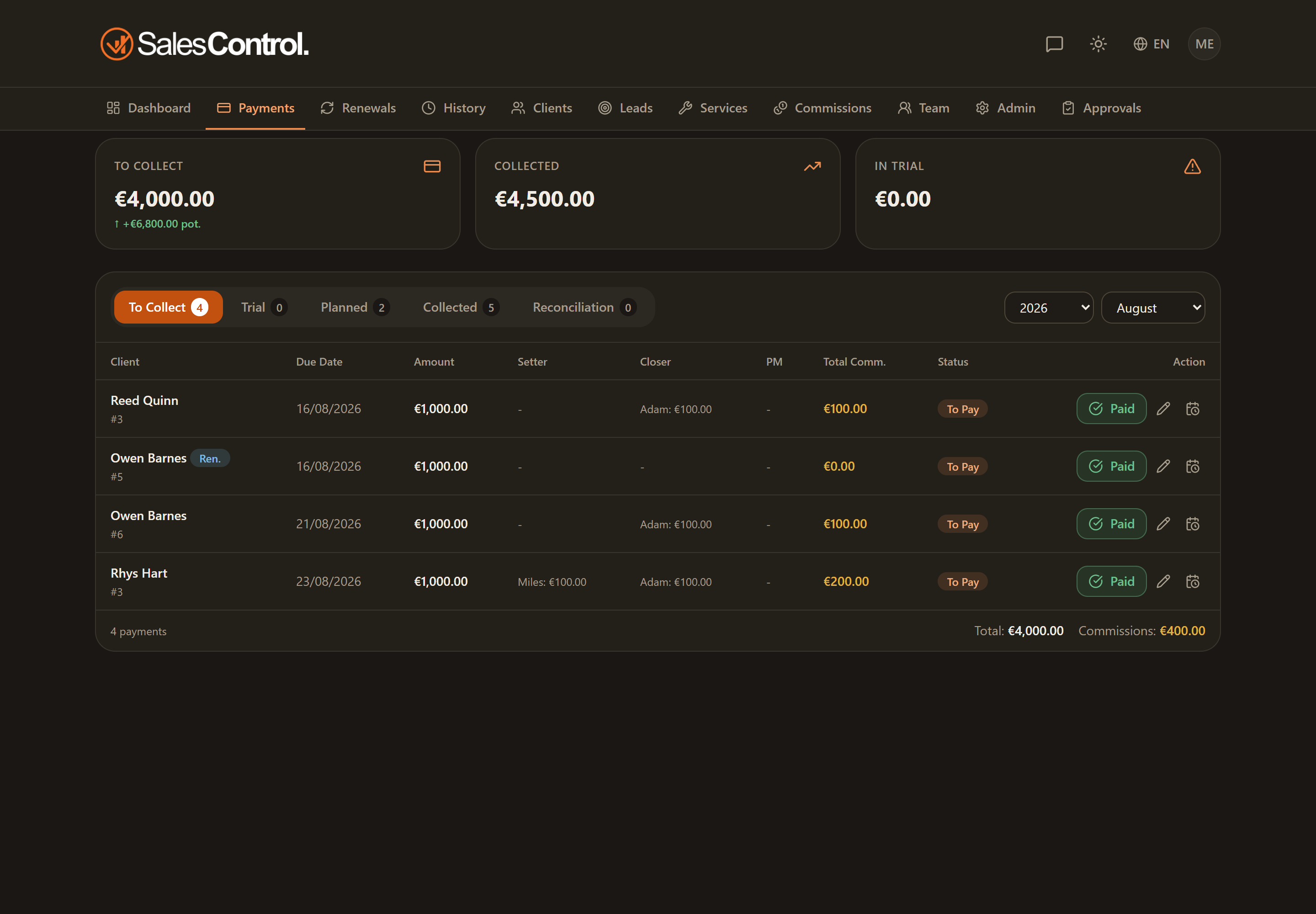
Summary cards
At the top of the tab a few cards sum up the situation for the selected period:
- To Collect — the total amount still to be collected.
- Number of payments — how many installments make up that total.
- Net To Collect — the amount net of the linked commissions.
- For the Admin, some additional data on the ongoing trials.
The table columns
Each row is an installment. The main columns are:
| Column | What it shows |
|---|---|
| Client | The client’s name, with the Trial badge where applicable, the installment number and, where applicable, the referral discount indicator. The Renewal badge no longer appears here: renewals are read in the Renewals Panel on the Dashboard. |
| Date | The installment’s due date. If it has already passed, the date appears in red (see below how “passed” is counted). |
| Amount | The installment amount. If the original currency differs from the agency base currency, a tooltip shows its value in the original currency. |
| Commissions / My commission | The Admin sees the commissions for the members involved; the salesperson member sees only the “My commission” column. |
| Status | The installment’s status. |
| Action | The Mark collected button to record the collection. |
The Mark collected button only appears if you have the can_mark_paid permission (“Mark payments”). It is always on for Admins; for a member it must be enabled by the admin in the member’s card under Team.
When an installment is “overdue”
An installment becomes overdue the day after its due date: the due day itself is not late, whoever pays before midnight is on time. The midnight that counts is the agency’s, that is the time zone set in Settings › General (Europe/Rome by default), not the one of the device you are looking from.
This way the same installment turns red — or doesn’t — for everyone at the same moment: before last September a closer in Sydney and the owner in Milan could see two different things about the same payment.
Finding an overdue installment
Use the Year and Month filters at the top to move between periods. Remember that opening this tab from the To Collect card on the Dashboard starts the filters on “All”, so you also see the overdue installments from past months all at once.
Marking a collection
To record a payment, click Mark collected on the row: a window opens with the Full and Partial modes. The full procedure is described in How to Mark a Payment as Collected.
Do you need to fix an installment’s amount or due date before collecting it? See Edit a Payment’s Amount and Due Date.