Impersonation (View as)
Impersonation lets you, as an admin, see the app from a team member’s point of view. It is the safest way to check what that person really sees: which pages, which clients and which actions they have available based on their roles and permissions.
This feature requires a paid plan (Starter and above). See Subscription Plans.
Where to find it
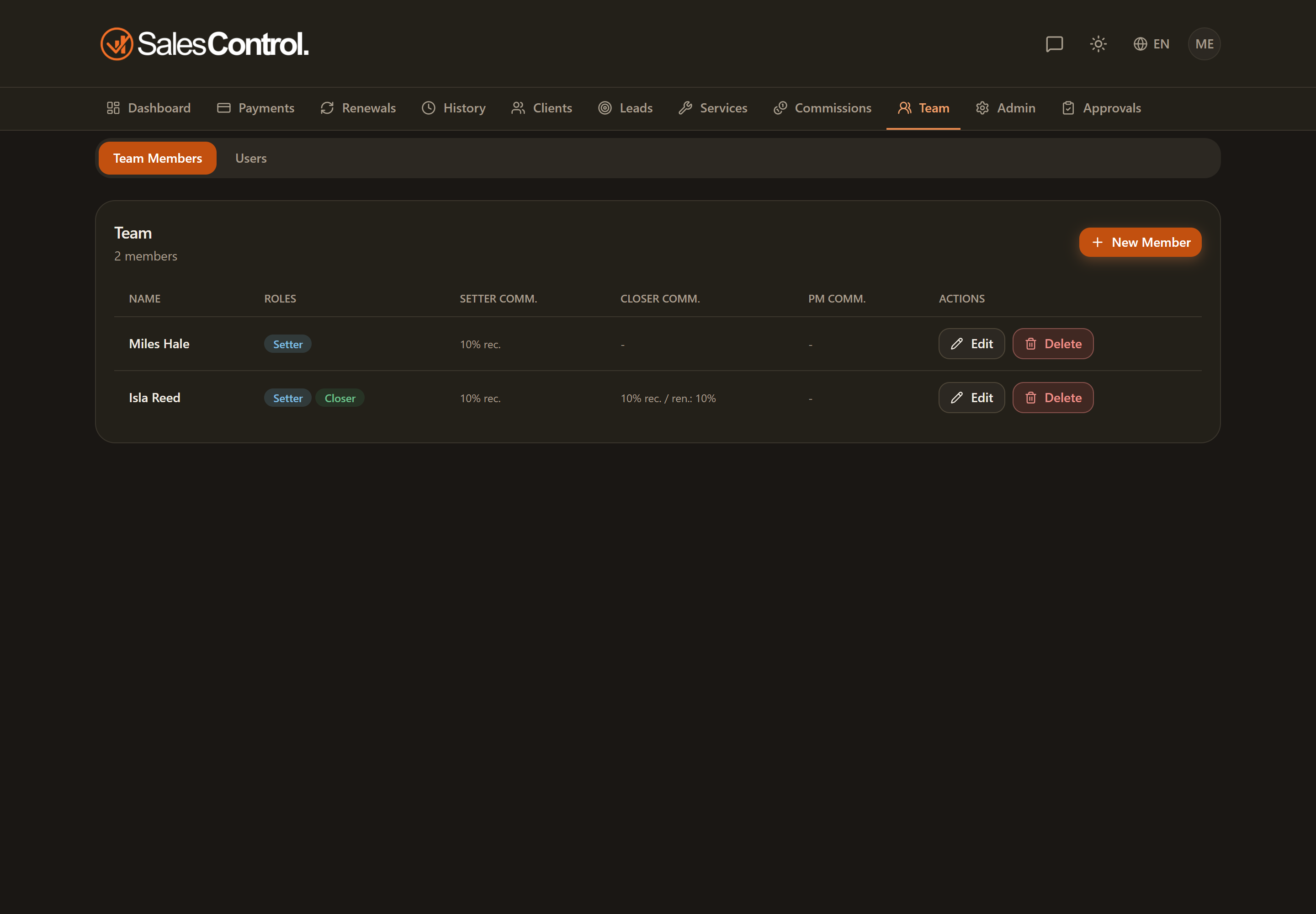
The feature is in the View as card, under Team › Users. You choose the member and switch to viewing as them.
How to use it
Go to the Team page and select the Users sub-tab.
Select the person whose view you want to see and confirm.
A banner at the top appears reminding you that you are viewing the app as that person. Move between the pages to check what they see and what they can do.
Press Exit in the banner to return to your admin view.
What it’s for
It’s useful to check a member’s configuration without asking them to log in:
- Confirm that they only see their own clients and commissions.
- Verify that a permission you just enabled or disabled produces the expected effect (for example the appearance of the collect button).
- Understand why a member says they “can’t see” a page or an action: often it’s a matter of role or permission.
If you want to change what a member sees, compare them against the permissions table: you enable or disable a checkbox in Team and then use “View as” to check the result right away. See Roles and Permissions.
As long as the “View as” banner is present, you are viewing the app from the member’s perspective. Remember to press Exit when you’re done, to be fully operational as an admin again.